

Setup
- Configure AI Providers and set the API key for your provider.
- In the playground view, write a valid prompt for the LLM.
- Click Run on the top right, or press
mod + enter.
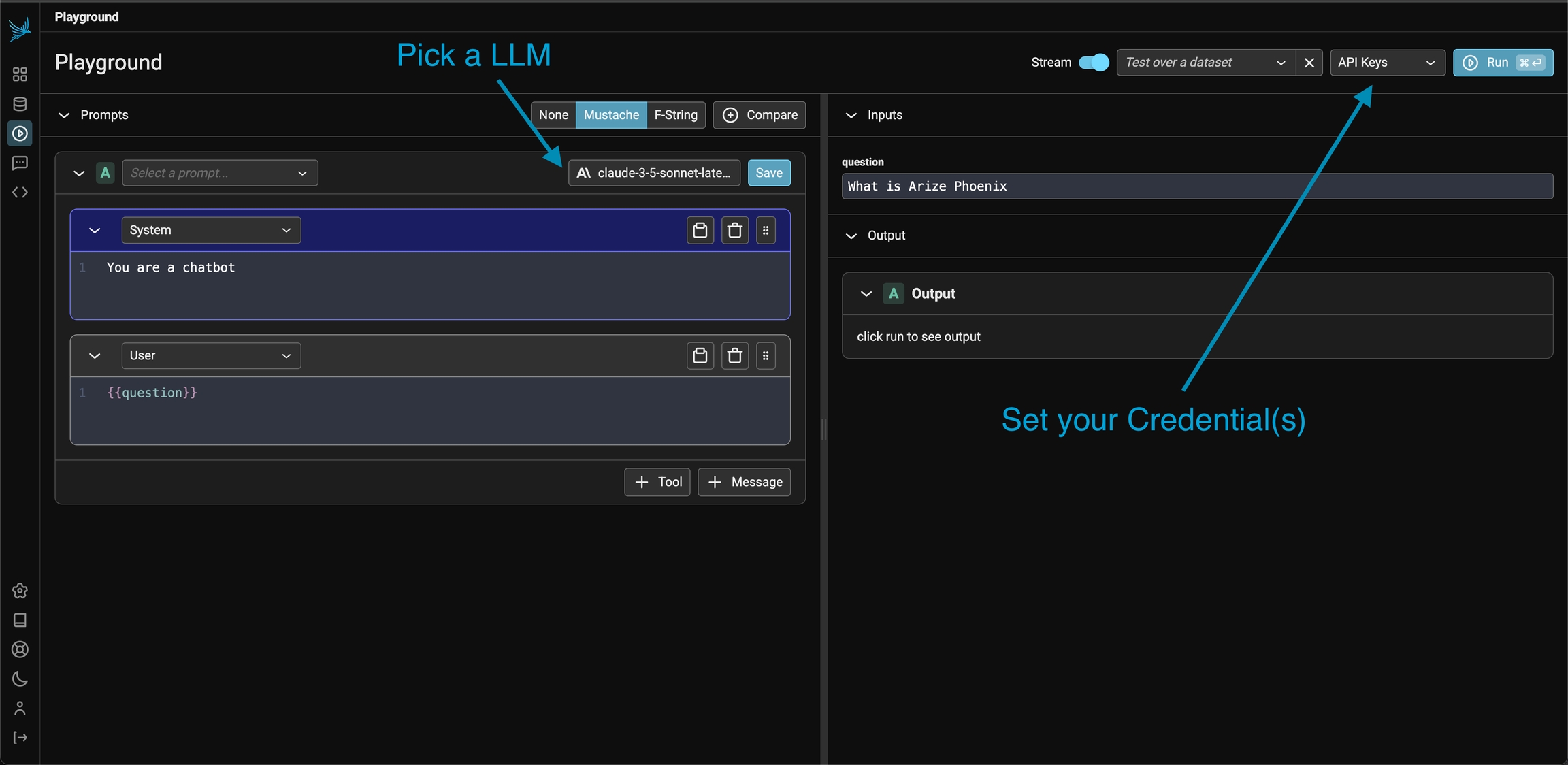
Pick an LLM and setup the API Key for that provider to get started
Prompt Editor
Define the prompt template in the prompt editor, on the left side of the screen. For the template model, see Prompts Concepts.- Select the template language on the toolbar: mustache or f-string.
- Type a variable placeholder in the prompt, for example
{{question}}for mustache. - Fill each variable in the inputs section, or fill the variables from a dataset.

Use the template language to create prompt template variables that can be applied during runtime
Model Configuration
Each prompt instance has its own LLM and invocation parameters.- Click the model configuration button at the top of the prompt editor.
- Select the LLM and set the invocation parameters.
- To keep this configuration across playground sessions, click save as default.
Switch models and modify invocation params
For OpenAI and Azure OpenAI models, select the OpenAI API type in the model configuration panel. Select Chat Completions (
chat.completions.create) or Responses (responses.create) for the model and features that you need.Reasoning / extended thinking
For models that support reasoning, the model configuration panel shows controls for how much the model thinks before it responds:- Anthropic (Claude 3.7 Sonnet and later): set extended thinking to disabled, adaptive (the default), or enabled. With enabled, set an explicit
budget_tokensvalue and a visibility toggle. You can also set the output effort (high/medium/low). When you enable extended thinking, Phoenix increasesmax_tokensto a minimum ofbudget_tokens + 1. - Google (Gemini 2.5 models): set
thinkingBudget,thinkingLevel(low/medium/high), or both.
Comparing Prompts
Compare multiple prompt variants in the playground. The UI labels the variants A, B, C, and D.- Click + Compare at the top of the first prompt to add a duplicate instance.
- Change the template, model, or parameters of each variant. Each variant keeps its own settings.
- Click Run to compare the outputs, or run an experiment to find the best prompt and model configuration for the task.
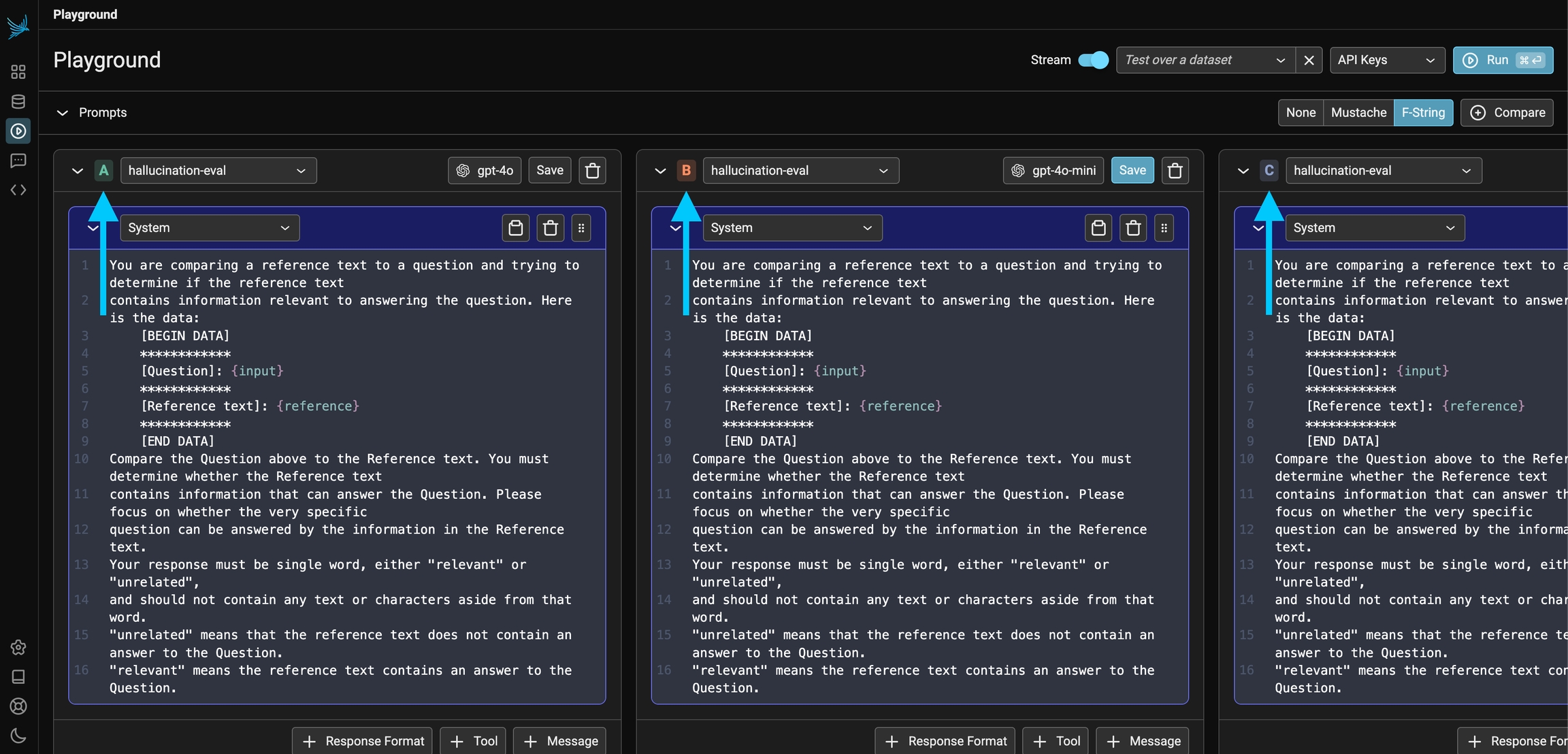
Compare multiple different prompt variants at once
Using Datasets with Prompts
Run one or more prompts on each example in a dataset.- Load a dataset that contains the input variables of your prompt template.
- Click Run.
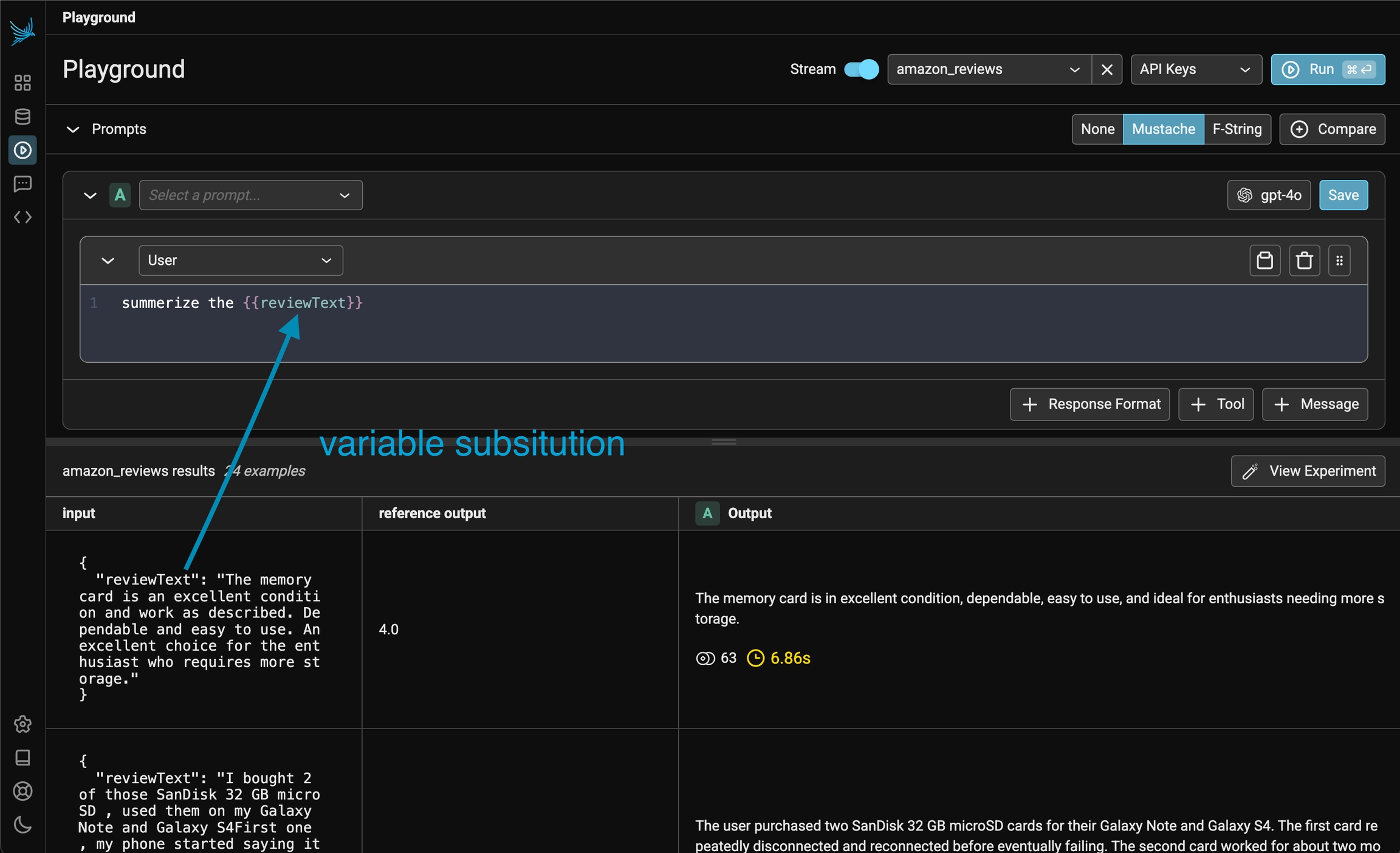
Each example's input is used to fill the prompt template
Configuring Dataset Paths
By default, the playground reads template variables frominput. Thus {question} resolves against input.question. If your dataset examples keep inputs in a different nested object, set the path:
- Load a dataset.
- Click the settings button (gear icon) in the experiment toolbar, next to the dataset selector.
- Set Prompt variable path to the dot-notation path that contains your template variables, for example
inputorpayload.inputs.
{question} and your dataset example is:
input.
To refer to root-level fields directly, for example {input.question} and {output.response}, clear the prompt variable path. Variables then resolve from the root object. For this dataset example:
{input.question} and {output.response} in your prompt.
Naming the Experiment
- Click the settings button (gear icon) in the experiment toolbar.
- Optional: enter a Name and a Description for the next experiment that you run.
Appending Conversation History
When you run experiments over datasets, you can append conversation messages from your dataset examples to the prompt. Use this to:- A/B test models: compare how different models respond to the same conversation history.
- Test system prompts: evaluate different system prompts against the same user conversations.
- Run multi-turn conversation experiments: run experiments on existing conversation threads.
Setting the Appended Messages Path
- Load a dataset that contains conversation messages in OpenAI format.
- Click the settings button (gear icon) in the experiment toolbar, next to the dataset selector.
- Enter the dot-notation path to the messages array in your dataset examples, for example
messagesorinput.messages.
Dataset Format
Your dataset examples must contain messages in the OpenAI chat format:
For nested structures, use a dot-notation path:
input.messages.
Example: A/B Testing System Prompts
- Create a dataset with conversation examples (user messages and expected context).
- In the playground, configure two prompt variants (A and B) with different system prompts.
- Load your dataset and set the appended messages path to
messages. - Run the experiment to compare how each system prompt handles the same conversations.
Playground Traces
Phoenix records all LLM invocations from the playground. Use these records for analysis, annotations, evaluations, and dataset curation. If you run an LLM with free-form inputs (no dataset), Phoenix records the spans in a project named “playground”.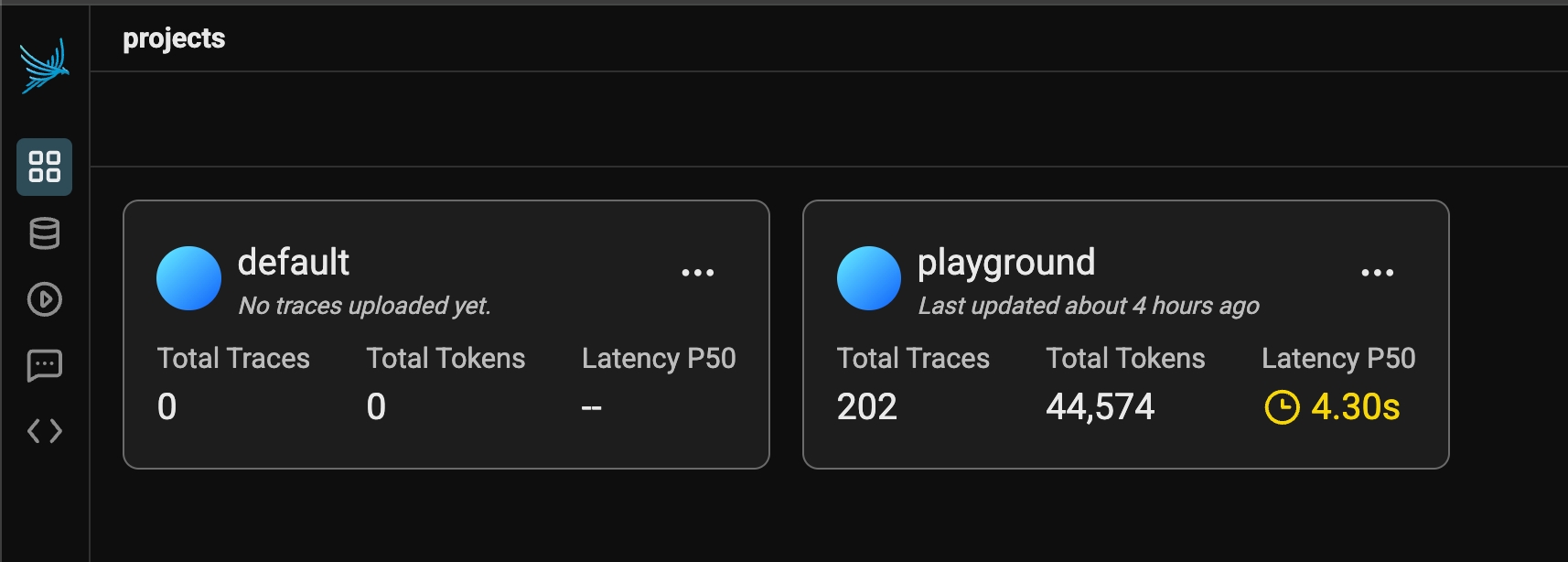
All free form playground runs are recorded under the playground project
playground-experiment. If the playground has a saved prompt loaded, its name is playground-experiment prompt:<prompt name>.
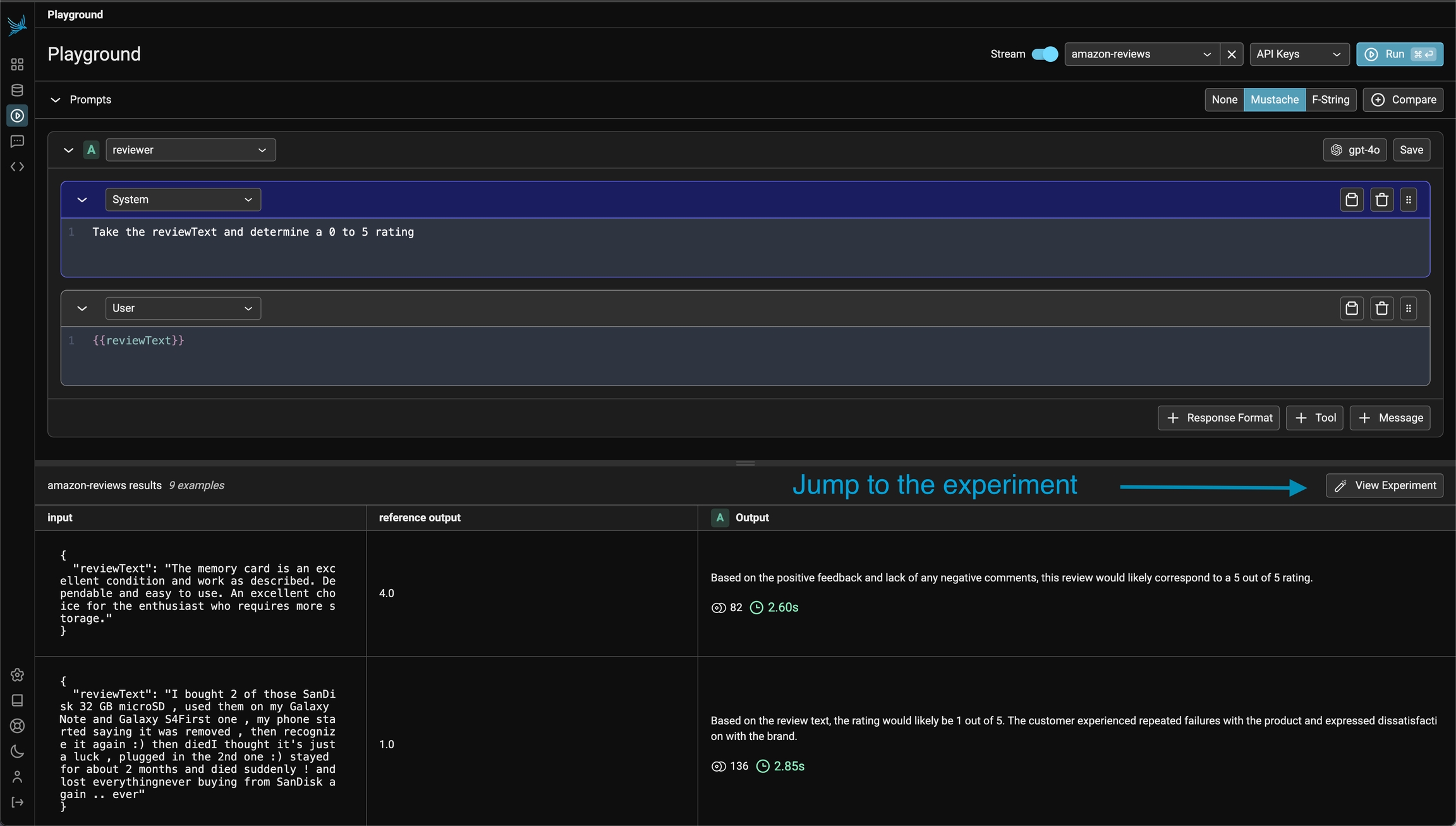
If you run over a dataset, the output and traces is tracked as a dataset experiment