

- Review the full history of a prompt.
- See who made a specific change.
- Revert to a previous version if necessary.
Creating a Tag
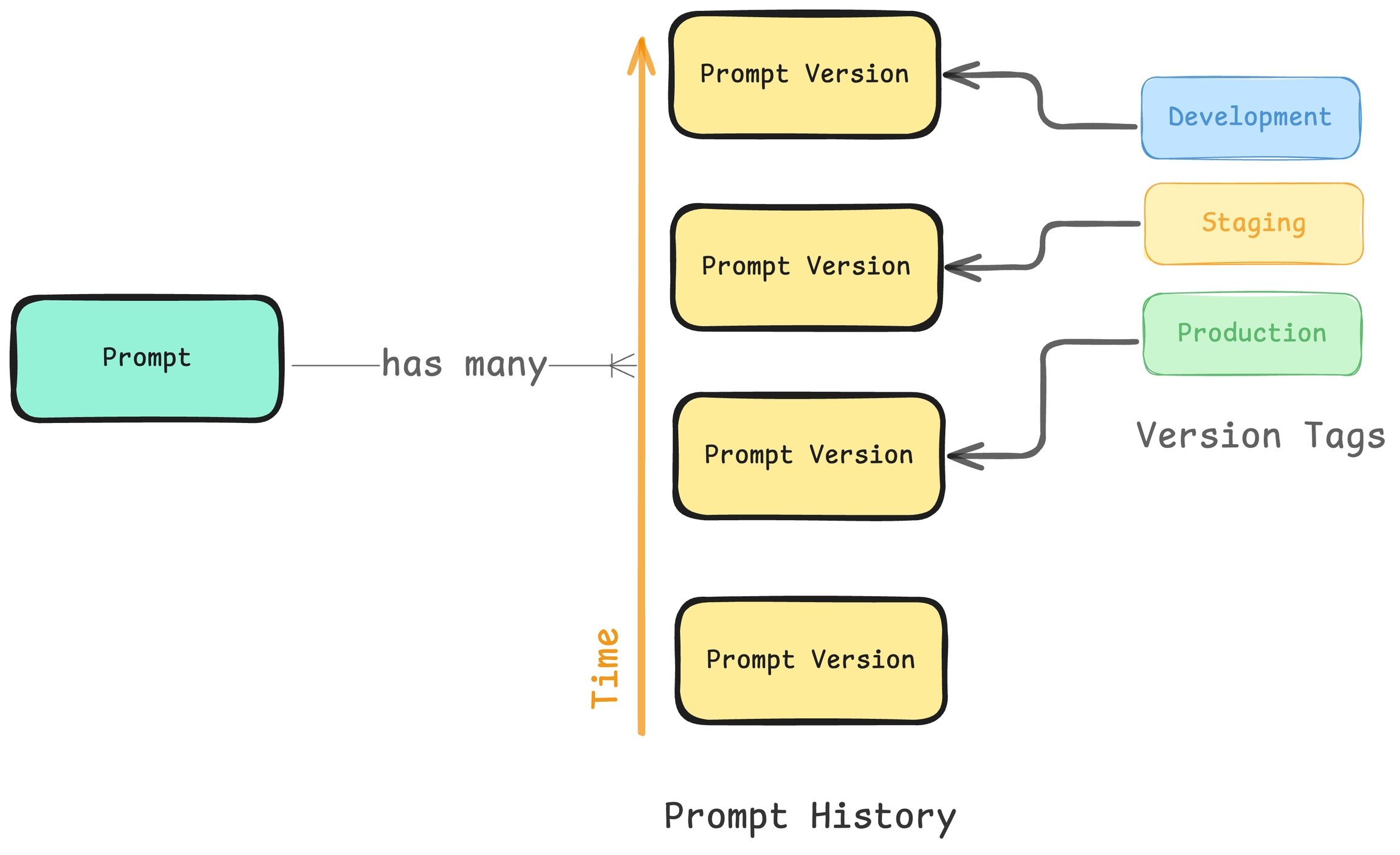
To deploy a prompt to an environment (for example, staging), tag a specific version of the prompt as ready. Phoenix gives 3 default tags: production, staging, and development. You can also create your own tags. Each tag can have an optional description of its purpose. Tags are unique per prompt. Thus, one prompt cannot have two tags with the same name.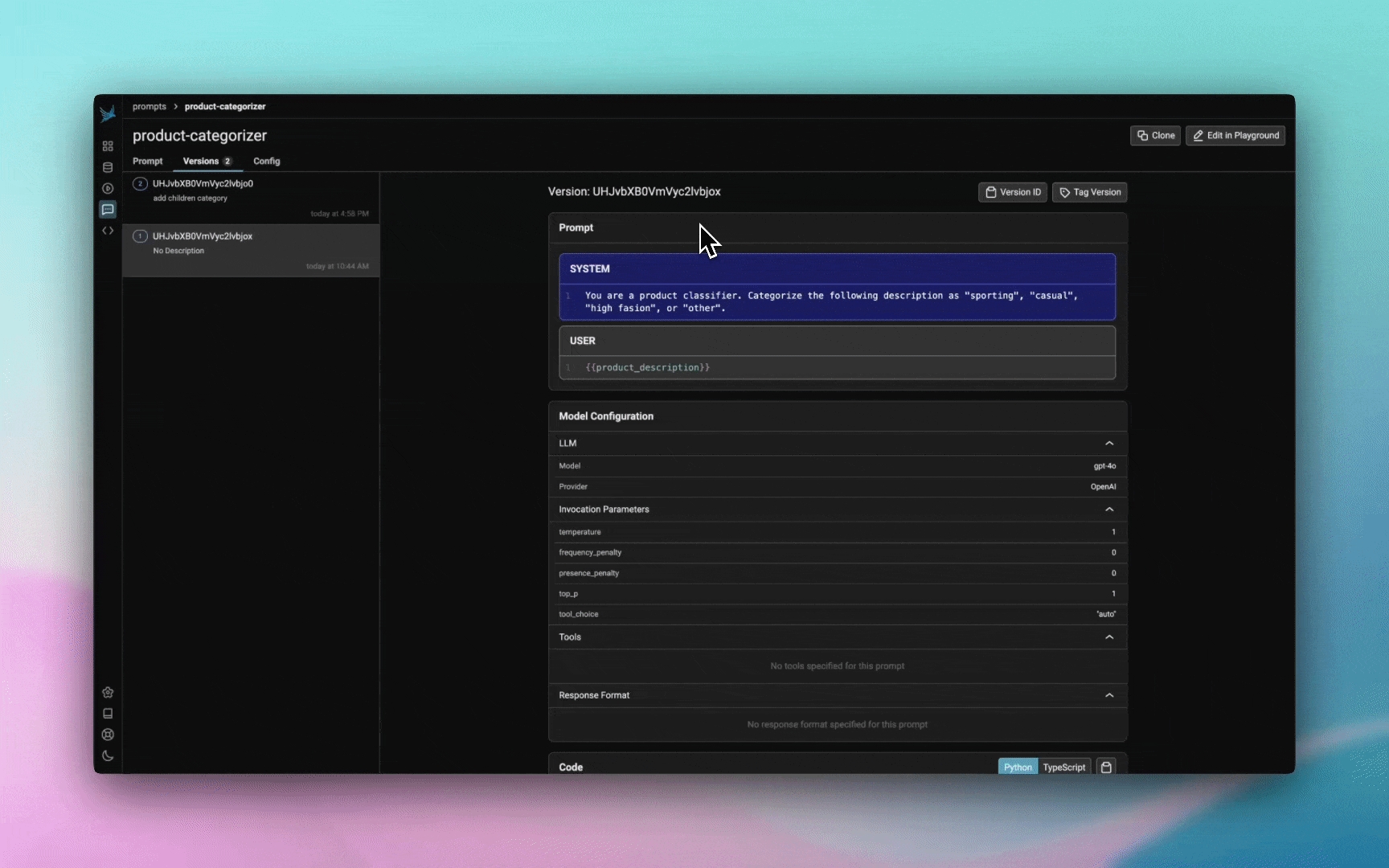
Creating a custom tag
Create a custom tag to track a specific version of a prompt. For example, to mark the prompt version in your v0 release, create a custom tag with that name. When you create a custom tag, give:- A name for the tag. The name must be a valid identifier (see Tag Naming Rules).
- An optional description of the tag’s purpose.
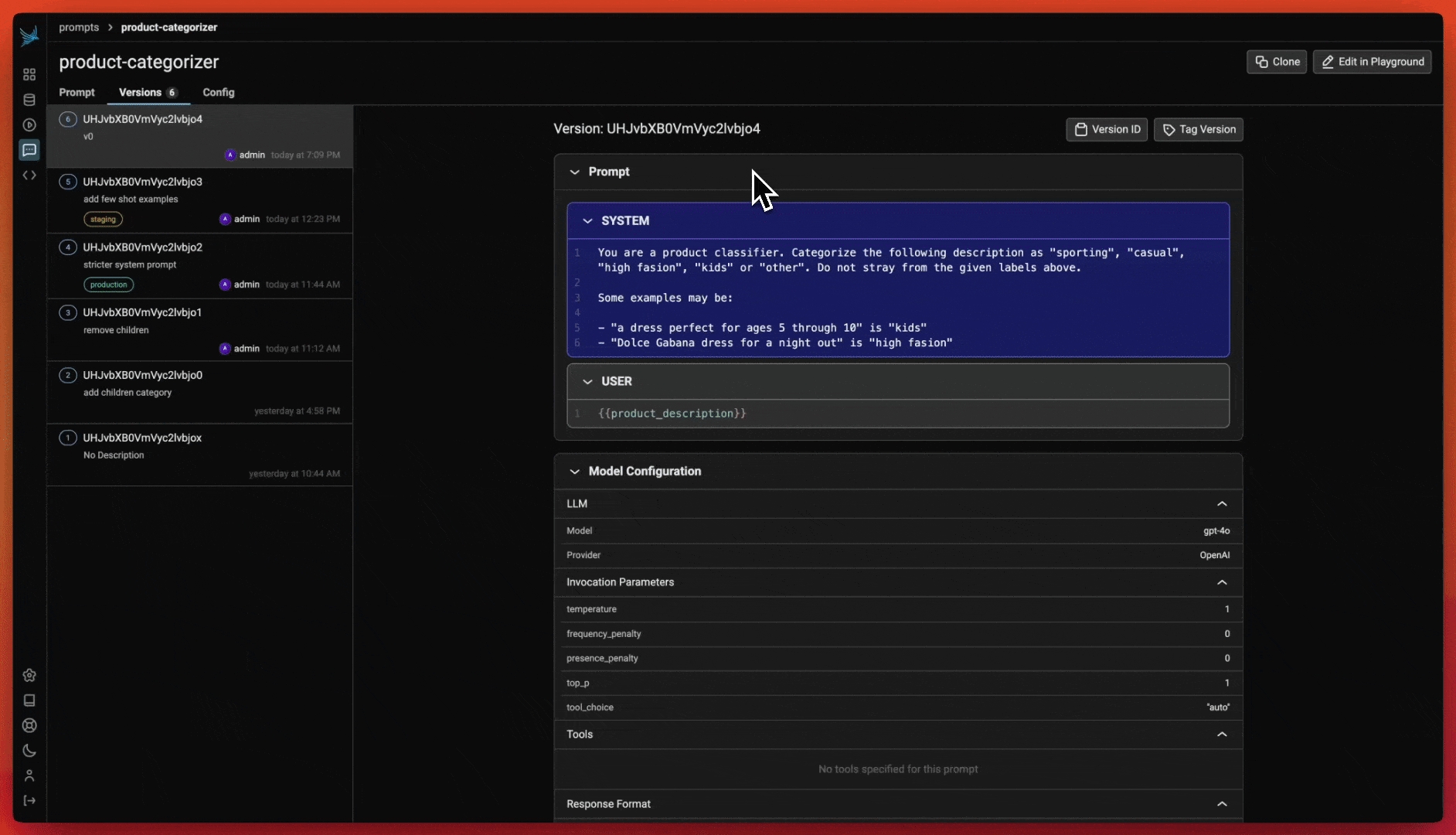
Use custom tags to track releases or maybe just an arbitrary milestone
Pulling a prompt by tag
After you tag a prompt version, you can pull it into any environment, for example an application or an experiment. Prompt version tags are similar to git tags. Use them to make a “release” of a prompt (for example, to push a prompt to staging). To get a prompt version, use one of these:- A default tag name (“production”, “staging”, or “development”)
- A custom tag name
- The latest version. This gives the most recent version, regardless of tags.
Listing tags
List the tags of a prompt version to:- Review all tags of a prompt version.
- Make sure which version has the tag for a specific environment.
- Track the history of tag changes for a prompt version.
- The unique identifier of the tag
- The name of the tag
- The description of the tag (if it has one)
Using the Client
Tag Naming Rules
A tag name must be a valid identifier. It can contain lowercase letters, numbers, hyphens, and underscores. It must start and end with a letter or a number. Examples:staging, production-v1, release-2024
Creating and Managing Tags
Use the Phoenix client to create a tag, list tags, and get a prompt version by tag.- Python
- Async Python