

Trace Cursor IDE and CLI conversations, shell commands, MCP tools, and file operations in Phoenix for full observability.Trace your Cursor sessions in Phoenix with the coding-harness-tracing toolkit — each conversation becomes a session and each message turn a trace, with the model’s response, shell commands, MCP tools, and file edits captured as nested spans. No application code changes required: the toolkit hooks into Cursor’s IDE and CLI events and streams OpenInference spans to Phoenix.
Launch Phoenix
The fastest way to get started with Phoenix is by signing up for a free Phoenix Cloud account. If you prefer, you can also run Phoenix in a notebook, self-host it, or use it directly from your terminal. Go to the settings page in your Phoenix instance to find your endpoint and API key. A self-hosted Phoenix defaults tohttp://localhost:6006; the API key is only required when auth is enabled.
Install
The curl installer is the simplest — it runs a short wizard that saves your Phoenix credentials for you. Use a local clone if you’d rather run the installer from a checkout of the source.Curl installer (recommended)
macOS / Linux:Local clone
~/.arize/harness/config.json, and registers the hooks in ~/.cursor/hooks.json. Both Cursor IDE and Cursor CLI sessions are instrumented from the same configuration.
Configuration
Credentials live in~/.arize/harness/config.json. Environment variables override values in config.json and can be set in your shell profile so they apply to Cursor IDE and Cursor CLI sessions.
PHOENIX_PROJECT (or PHOENIX_PROJECT_NAME); ARIZE_PROJECT_NAME is Arize-only and ignored here. ARIZE_TRACE_ENABLED is a backend-agnostic harness setting and keeps the ARIZE_ prefix regardless of destination.
Redaction controls
EachARIZE_LOG_* flag accepts "true" or "false" and defaults to "true". Set to "false" to opt out per category:
Observe
Once tracing is enabled, Cursor activity is streamed to Phoenix. You’ll see:- Session grouping by
conversation_idfor each Cursor conversation - Turn traces by
generation_idfor each message turn - User prompt spans for submitted prompts
- Agent response spans with model output
- Agent thinking spans when Cursor emits reasoning/thought events
- Shell spans with command input and command output merged into a single tool span
- MCP spans named
MCP: {tool}with tool input and result - File read and edit spans for file operations, including tab reads and edits
cursor unless you set PHOENIX_PROJECT.
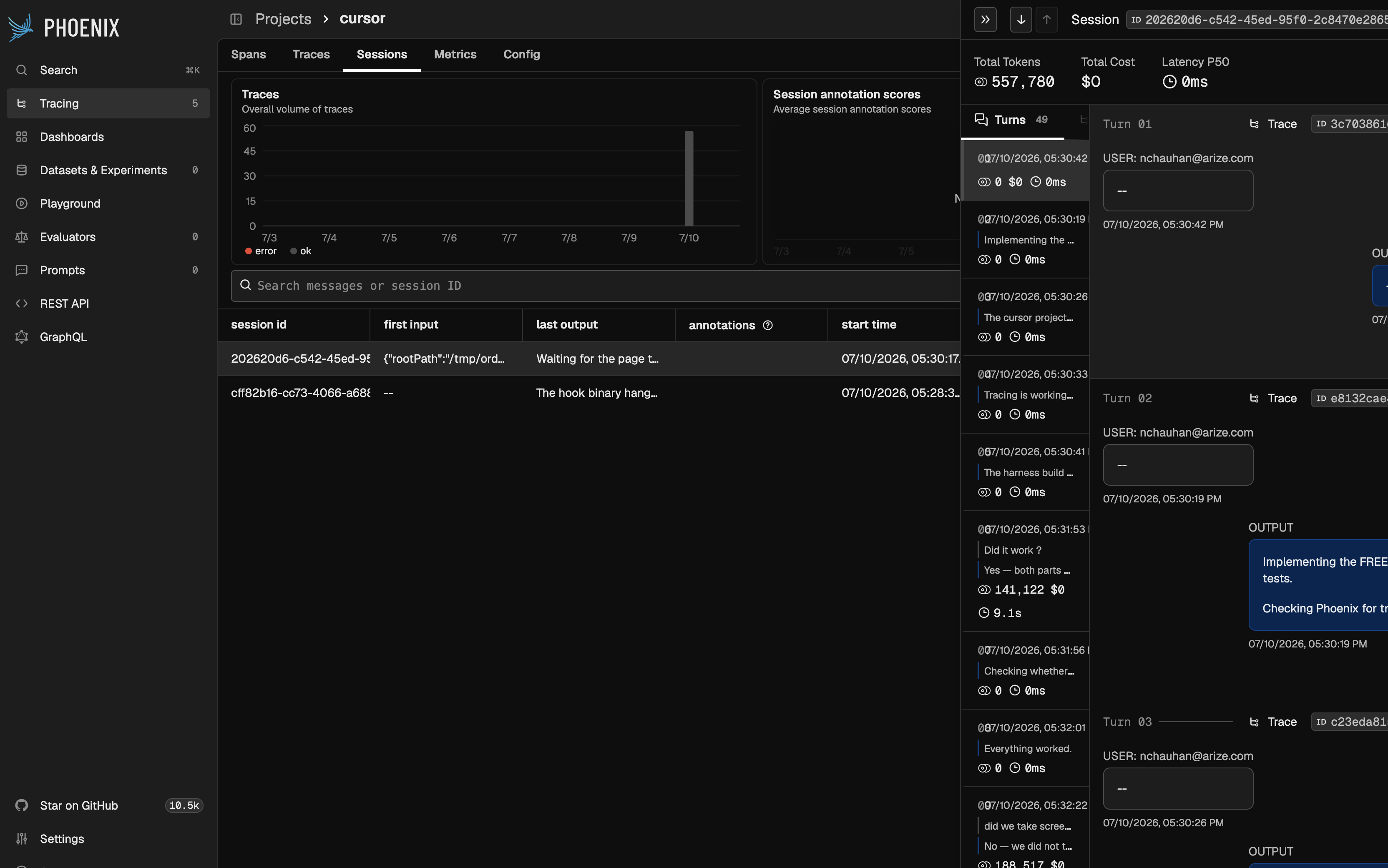
Cursor conversation grouped together in a single session view
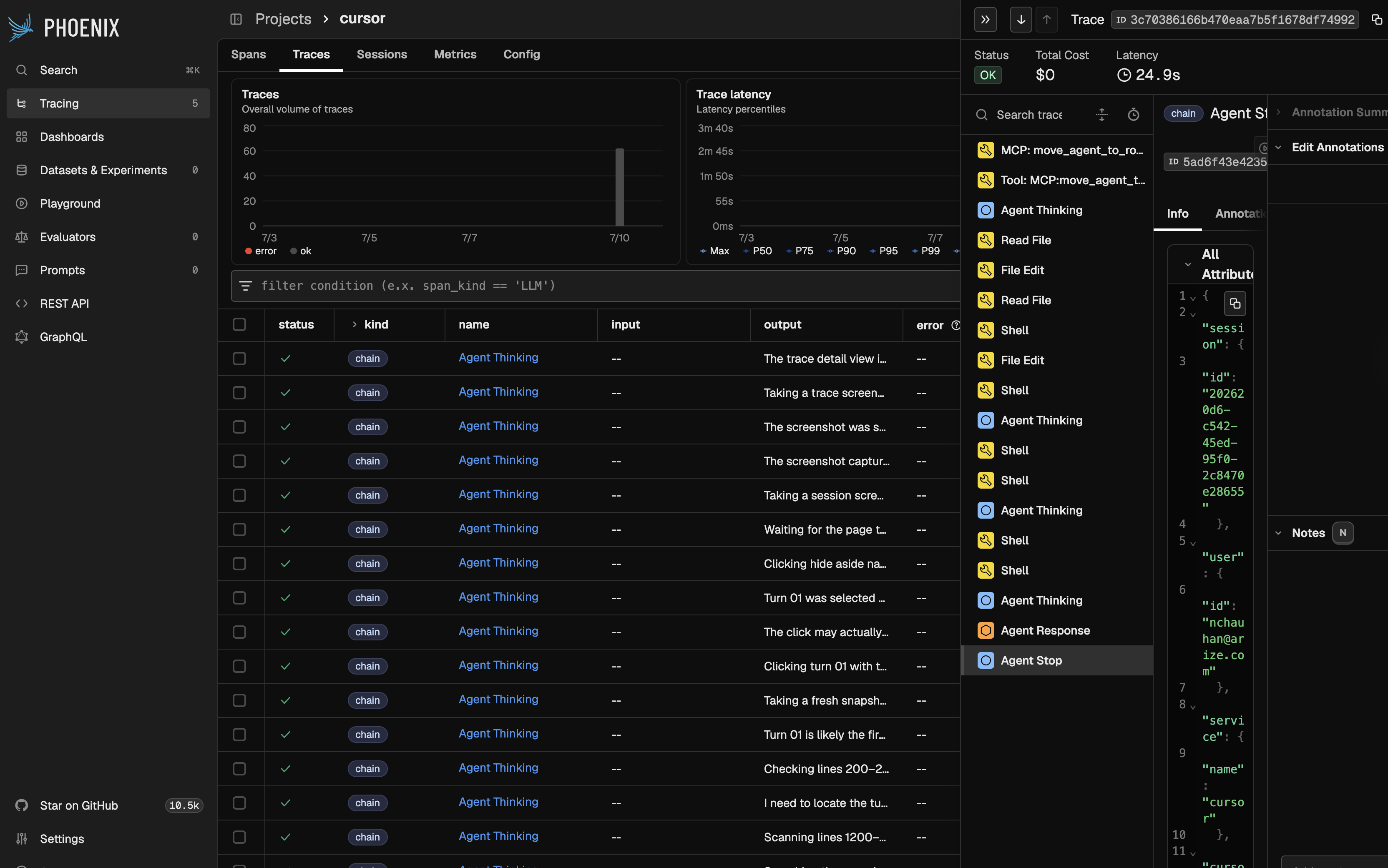
Detailed trace view for a Cursor turn
How Shell and MCP Merge Works
Cursor emits separatebefore* and after* hook events for shell commands and MCP tools. The hooks keep a small disk-backed state entry for the before event, then create a single span on the corresponding after event. That gives you one span with both the input and the output instead of two partial spans.
On stop, the hook handler cleans up any saved state for that turn so the state directory does not keep growing over time.