> ## Documentation Index
> Fetch the complete documentation index at: https://arizeai-433a7140.mintlify.site/llms.txt
> Use this file to discover all available pages before exploring further.
# Setup Sessions
> How to track sessions across multiple traces
If you are using LangChain, you can use LangChain's native threads to track sessions! See [https://docs.smith.langchain.com/old/monitoring/faq/threads](https://docs.smith.langchain.com/old/monitoring/faq/threads)
A `Session` is a sequence of traces representing a single session (e.g. a session or a thread). Each response is represented as its own trace, but these traces are linked together by being part of the same session.
To associate traces together, you need to pass in a special metadata key where the value is the unique identifier for that thread.
## Example Notebooks
| Use Case | Language | Links |
| :------------------------------- | :------- | ---------------------------------------------------------------------------------------------------------------------------------------------------------------------------------------------------------------------------------------------------------------------------------------------------------------------------------------------------------------------------------------------------------------------------------------------------------------------------------- |
| OpenAI tracing with Sessions | Python | [ ](https://colab.research.google.com/github/Arize-ai/phoenix/blob/main/tutorials/tracing/openai_sessions_tutorial.ipynb) [
 ](https://github.com/Arize-ai/phoenix/blob/main/tutorials/tracing/openai_sessions_tutorial.ipynb) |
| LlamaIndex tracing with Sessions | Python | [](https://github.com/Arize-ai/phoenix/blob/main/tutorials/tracing/openai_sessions_tutorial.ipynb) [](https://colab.research.google.com/github/Arize-ai/phoenix/blob/main/tutorials/tracing/project_sessions_llama_index_query_engine.ipynb) |
| OpenAI tracing with Sessions | TS/JS | [](https://github.com/Arize-ai/phoenix/blob/main/js/examples/notebooks/tracing_openai_sessions_tutorial.ipynb) |
## Logging Conversations
Below is an example of logging conversations:
First make sure you have the required dependencies installed
```bash theme={null}
pip install "arize-phoenix-otel>=0.16.0"
```
Requires `arize-phoenix-otel` **0.16.0 or later** for `using_session` and `SpanAttributes` to be importable directly from `phoenix.otel`. On older versions, import them from `openinference.instrumentation` and `openinference.semconv.trace`.
Below is an example of how to propagate session IDs to auto-instrumented spans.
```python theme={null}
import uuid
import openai
from phoenix.otel import SpanAttributes, using_session
from opentelemetry import trace
client = openai.Client()
session_id = str(uuid.uuid4())
tracer = trace.get_tracer(__name__)
@tracer.start_as_current_span(name="agent", attributes={SpanAttributes.OPENINFERENCE_SPAN_KIND: "agent"})
def assistant(
messages: list[dict],
session_id: str = str,
):
current_span = trace.get_current_span()
current_span.set_attribute(SpanAttributes.SESSION_ID, session_id)
current_span.set_attribute(SpanAttributes.INPUT_VALUE, messages[-1].get('content'))
# Propagate the session_id down to spans crated by the OpenAI instrumentation
# This is not strictly necessary, but it helps to correlate the spans to the same session
with using_session(session_id):
response = client.chat.completions.create(
model="gpt-4o-mini",
messages=[{"role": "system", "content": "You are a helpful assistant."}] + messages,
).choices[0].message
current_span.set_attribute(SpanAttributes.OUTPUT_VALUE, response.content)
return response
messages = [
{"role": "user", "content": "hi! im bob"}
]
response = assistant(
messages,
session_id=session_id,
)
messages = messages + [
response,
{"role": "user", "content": "what's my name?"}
]
response = assistant(
messages,
session_id=session_id,
)
```
The easiest way to add sessions to your application is to install `@arizeai/phoenix-otel`
```javascript theme={null}
npm install @arizeai/phoenix-otel
```
You now can use either the `session.id` semantic attribute or the `setSession` utility function from `phoenix-otel` to associate traces with a particular session:
```javascript theme={null}
import OpenAI from "openai";
import { context, trace, setSession } from "@arizeai/phoenix-otel";
const tracer = trace.getTracer("agent");
const client = new OpenAI({
apiKey: process.env["OPENAI_API_KEY"], // This is the default and can be omitted
});
async function assistant(params: {
messages: { role: string; content: string }[];
sessionId: string;
}) {
return tracer.startActiveSpan("agent", async (span) => {
span.setAttribute("openinference.span.kind", "agent");
span.setAttribute("session.id", params.sessionId);
span.setAttribute(
"input.value",
params.messages[params.messages.length - 1].content,
);
try {
// This is not strictly necessary but it helps propagate the session ID
// to all child spans
return context.with(
setSession(context.active(), { sessionId: params.sessionId }),
async () => {
// Calls within this block will generate spans with the session ID set
const chatCompletion = await client.chat.completions.create({
messages: params.messages,
model: "gpt-4o-mini",
});
const response = chatCompletion.choices[0].message;
span.setAttribute("output.value", response.content);
span.end();
return response;
},
);
} catch (error) {
span.recordException(error as Error);
throw error;
}
});
}
const sessionId = crypto.randomUUID();
let messages = [{ role: "user", content: "hi! im Tim" }];
const res = await assistant({
messages,
sessionId: sessionId,
});
messages = [res, { role: "assistant", content: "What is my name?" }];
await assistant({
messages,
sessionId: sessionId,
});
```
## Viewing Sessions
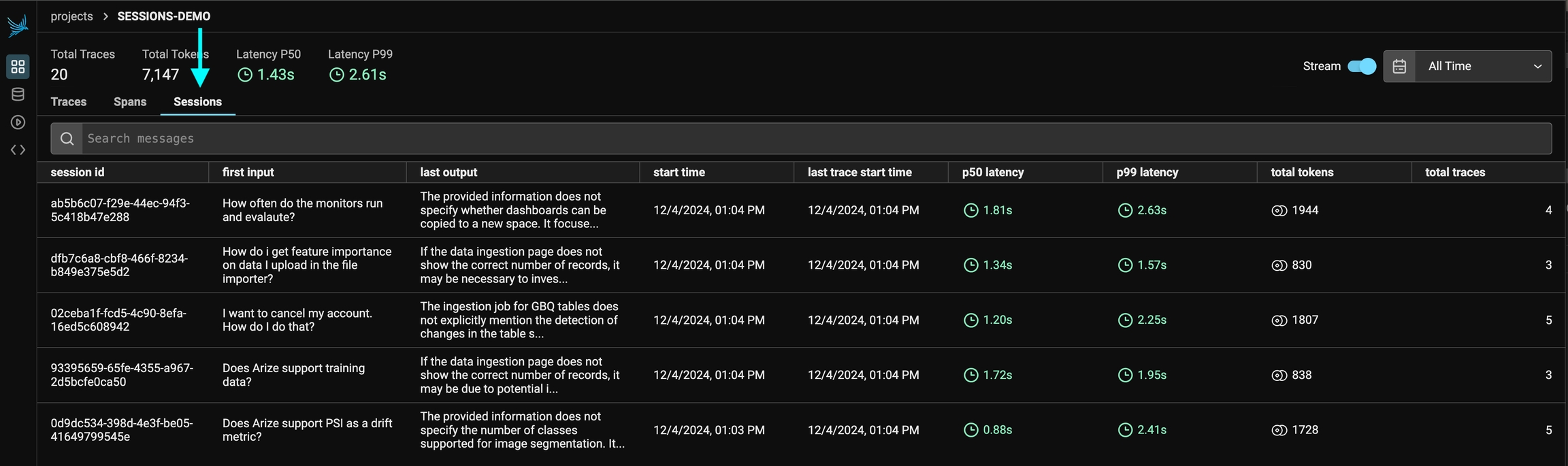
You can view the sessions for a given project by clicking on the "Sessions" tab in the project. You will see a list of all the recent sessions as well as some analytics. You can search the content of the messages to narrow down the list.
](https://github.com/Arize-ai/phoenix/blob/main/tutorials/tracing/openai_sessions_tutorial.ipynb) |
| LlamaIndex tracing with Sessions | Python | [](https://github.com/Arize-ai/phoenix/blob/main/tutorials/tracing/openai_sessions_tutorial.ipynb) [](https://colab.research.google.com/github/Arize-ai/phoenix/blob/main/tutorials/tracing/project_sessions_llama_index_query_engine.ipynb) |
| OpenAI tracing with Sessions | TS/JS | [](https://github.com/Arize-ai/phoenix/blob/main/js/examples/notebooks/tracing_openai_sessions_tutorial.ipynb) |
## Logging Conversations
Below is an example of logging conversations:
First make sure you have the required dependencies installed
```bash theme={null}
pip install "arize-phoenix-otel>=0.16.0"
```
Requires `arize-phoenix-otel` **0.16.0 or later** for `using_session` and `SpanAttributes` to be importable directly from `phoenix.otel`. On older versions, import them from `openinference.instrumentation` and `openinference.semconv.trace`.
Below is an example of how to propagate session IDs to auto-instrumented spans.
```python theme={null}
import uuid
import openai
from phoenix.otel import SpanAttributes, using_session
from opentelemetry import trace
client = openai.Client()
session_id = str(uuid.uuid4())
tracer = trace.get_tracer(__name__)
@tracer.start_as_current_span(name="agent", attributes={SpanAttributes.OPENINFERENCE_SPAN_KIND: "agent"})
def assistant(
messages: list[dict],
session_id: str = str,
):
current_span = trace.get_current_span()
current_span.set_attribute(SpanAttributes.SESSION_ID, session_id)
current_span.set_attribute(SpanAttributes.INPUT_VALUE, messages[-1].get('content'))
# Propagate the session_id down to spans crated by the OpenAI instrumentation
# This is not strictly necessary, but it helps to correlate the spans to the same session
with using_session(session_id):
response = client.chat.completions.create(
model="gpt-4o-mini",
messages=[{"role": "system", "content": "You are a helpful assistant."}] + messages,
).choices[0].message
current_span.set_attribute(SpanAttributes.OUTPUT_VALUE, response.content)
return response
messages = [
{"role": "user", "content": "hi! im bob"}
]
response = assistant(
messages,
session_id=session_id,
)
messages = messages + [
response,
{"role": "user", "content": "what's my name?"}
]
response = assistant(
messages,
session_id=session_id,
)
```
The easiest way to add sessions to your application is to install `@arizeai/phoenix-otel`
```javascript theme={null}
npm install @arizeai/phoenix-otel
```
You now can use either the `session.id` semantic attribute or the `setSession` utility function from `phoenix-otel` to associate traces with a particular session:
```javascript theme={null}
import OpenAI from "openai";
import { context, trace, setSession } from "@arizeai/phoenix-otel";
const tracer = trace.getTracer("agent");
const client = new OpenAI({
apiKey: process.env["OPENAI_API_KEY"], // This is the default and can be omitted
});
async function assistant(params: {
messages: { role: string; content: string }[];
sessionId: string;
}) {
return tracer.startActiveSpan("agent", async (span) => {
span.setAttribute("openinference.span.kind", "agent");
span.setAttribute("session.id", params.sessionId);
span.setAttribute(
"input.value",
params.messages[params.messages.length - 1].content,
);
try {
// This is not strictly necessary but it helps propagate the session ID
// to all child spans
return context.with(
setSession(context.active(), { sessionId: params.sessionId }),
async () => {
// Calls within this block will generate spans with the session ID set
const chatCompletion = await client.chat.completions.create({
messages: params.messages,
model: "gpt-4o-mini",
});
const response = chatCompletion.choices[0].message;
span.setAttribute("output.value", response.content);
span.end();
return response;
},
);
} catch (error) {
span.recordException(error as Error);
throw error;
}
});
}
const sessionId = crypto.randomUUID();
let messages = [{ role: "user", content: "hi! im Tim" }];
const res = await assistant({
messages,
sessionId: sessionId,
});
messages = [res, { role: "assistant", content: "What is my name?" }];
await assistant({
messages,
sessionId: sessionId,
});
```
## Viewing Sessions
You can view the sessions for a given project by clicking on the "Sessions" tab in the project. You will see a list of all the recent sessions as well as some analytics. You can search the content of the messages to narrow down the list.
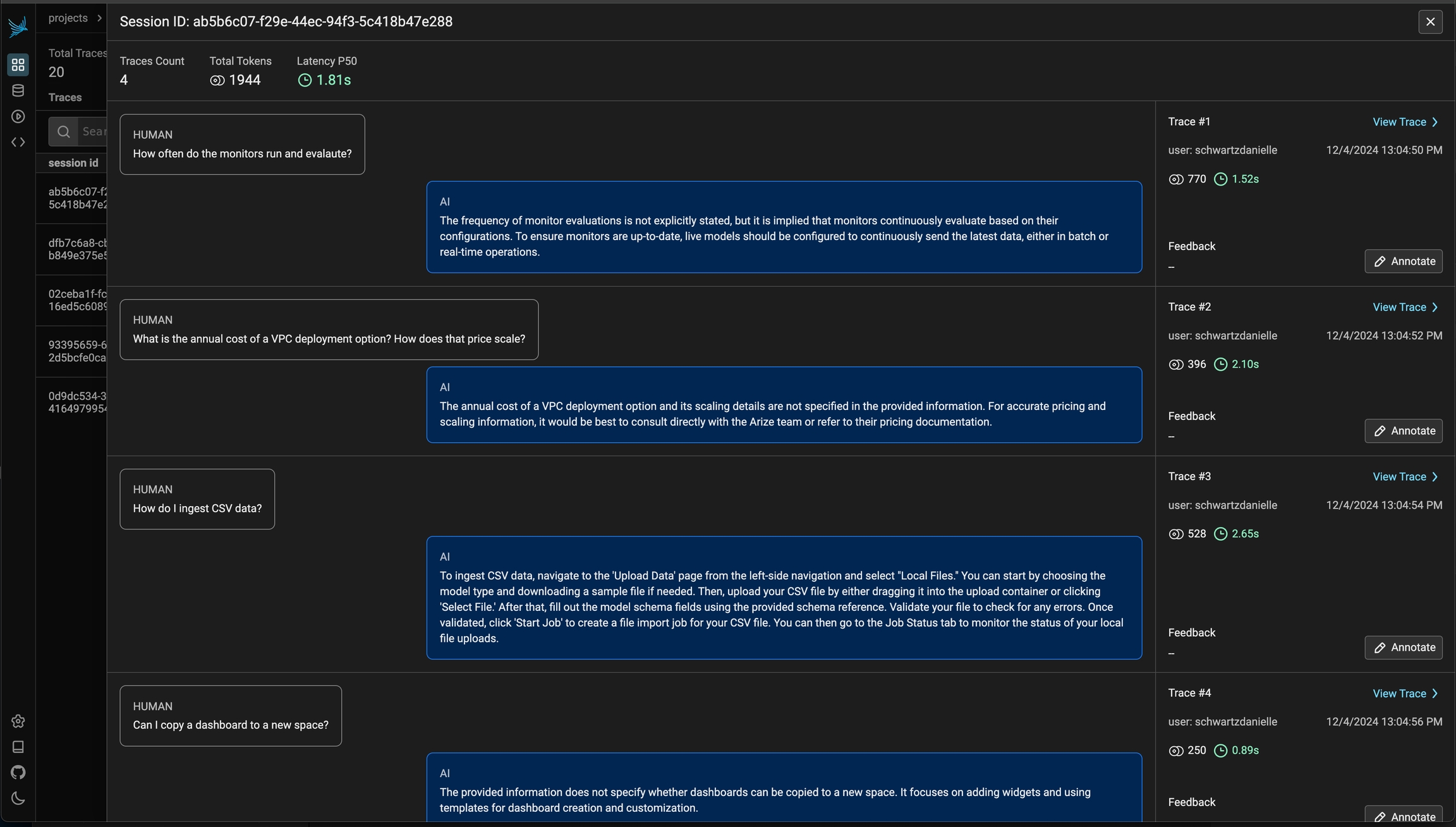
 You can then click into a given session. This will open the history of a particular session. If the sessions contain input / output, you will see a chatbot-like UI where you can see the a history of inputs and outputs.
 ## How to track sessions with LangChain
For LangChain, in order to log runs as part of the same thread you need to pass a special metadata key to the run. The key value is the unique identifier for that conversation. The key name should be one of:
* `session_id`
* `thread_id`
* `conversation_id`.
## How to track sessions with LangChain
For LangChain, in order to log runs as part of the same thread you need to pass a special metadata key to the run. The key value is the unique identifier for that conversation. The key name should be one of:
* `session_id`
* `thread_id`
* `conversation_id`.