> ## Documentation Index
> Fetch the complete documentation index at: https://arizeai-433a7140.mintlify.site/llms.txt
> Use this file to discover all available pages before exploring further.
# Annotate Traces
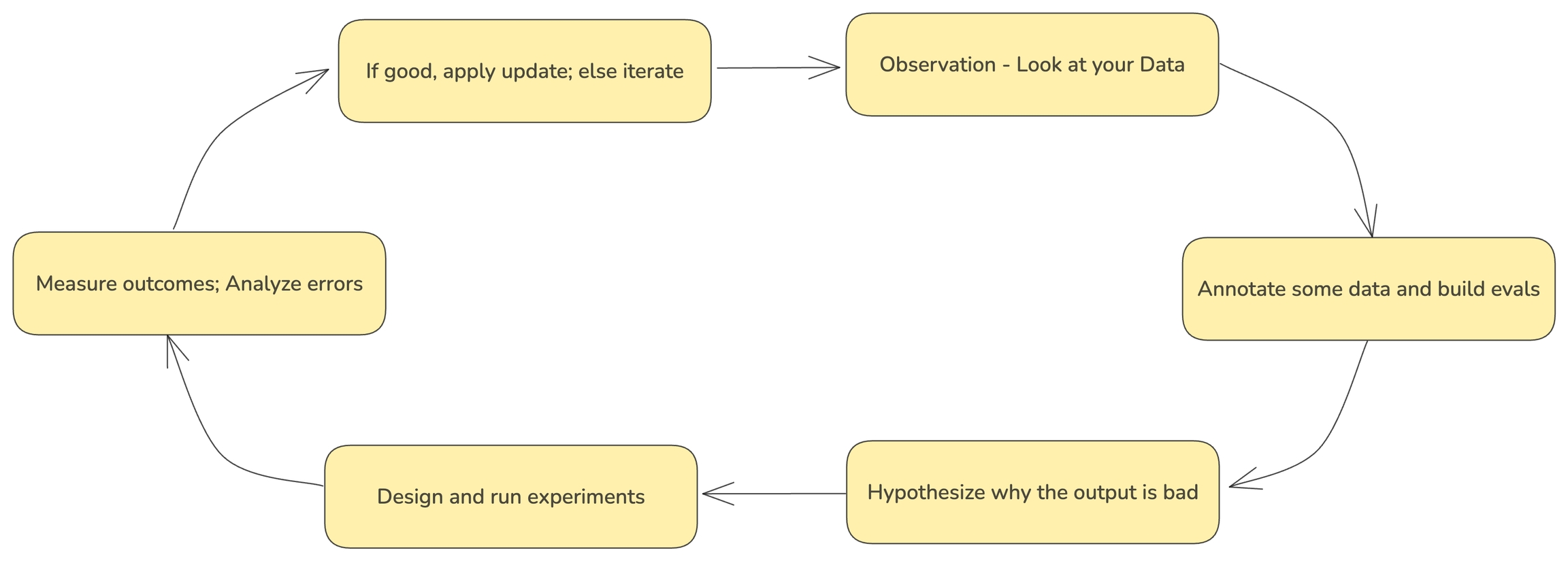 Annotating traces is a crucial aspect of evaluating and improving your LLM-based applications. By systematically recording qualitative or quantitative feedback on specific interactions or entire conversation flows, you can:
1. Track performance over time
2. Identify areas for improvement
3. Compare different model versions or prompts
4. Gather data for fine-tuning or retraining
5. Provide stakeholders with concrete metrics on system effectiveness
Phoenix allows you to annotate traces through the Client, the REST API, or the UI.
## Guides
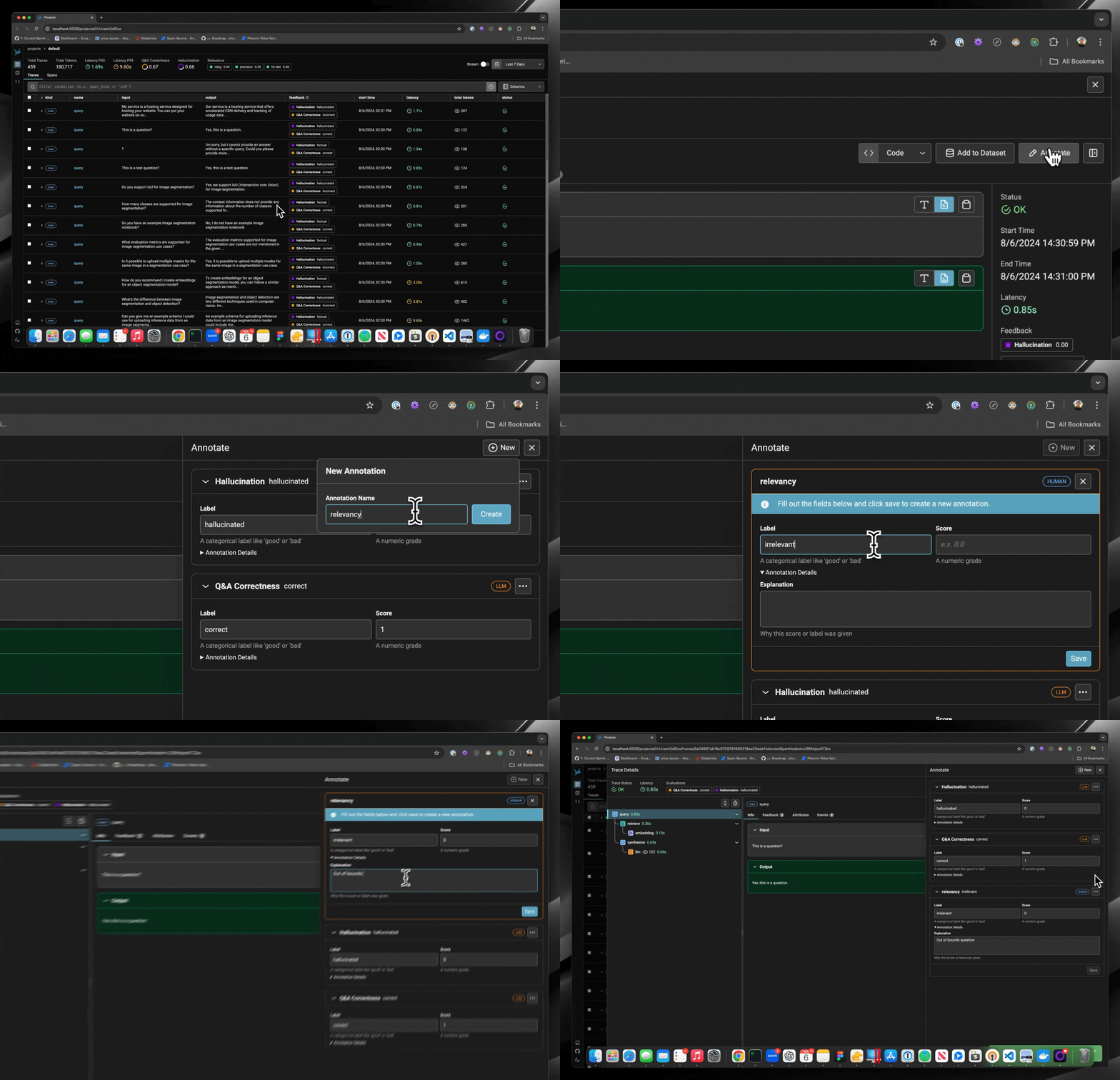
* To learn how to configure annotations and to annotate through the UI, see [Annotating in the UI](/docs/phoenix/tracing/how-to-tracing/feedback-and-annotations/annotating-in-the-ui)
* To learn how to add human labels to your traces, either manually or programmatically, see [Annotating via the Client](/docs/phoenix/tracing/how-to-tracing/feedback-and-annotations/capture-feedback)
* To learn how to evaluate traces captured in Phoenix, see [Running Evals on Traces](/docs/phoenix/tracing/how-to-tracing/feedback-and-annotations/evaluating-phoenix-traces)
* To learn how to upload your own evaluation labels into Phoenix, see [Log Evaluation Results](/docs/phoenix/tracing/how-to-tracing/feedback-and-annotations/llm-evaluations)
For more background on the concept of annotations, see [Annotations](/docs/phoenix/tracing/llm-traces/how-to-annotate-traces)
Annotating traces is a crucial aspect of evaluating and improving your LLM-based applications. By systematically recording qualitative or quantitative feedback on specific interactions or entire conversation flows, you can:
1. Track performance over time
2. Identify areas for improvement
3. Compare different model versions or prompts
4. Gather data for fine-tuning or retraining
5. Provide stakeholders with concrete metrics on system effectiveness
Phoenix allows you to annotate traces through the Client, the REST API, or the UI.
## Guides
* To learn how to configure annotations and to annotate through the UI, see [Annotating in the UI](/docs/phoenix/tracing/how-to-tracing/feedback-and-annotations/annotating-in-the-ui)
* To learn how to add human labels to your traces, either manually or programmatically, see [Annotating via the Client](/docs/phoenix/tracing/how-to-tracing/feedback-and-annotations/capture-feedback)
* To learn how to evaluate traces captured in Phoenix, see [Running Evals on Traces](/docs/phoenix/tracing/how-to-tracing/feedback-and-annotations/evaluating-phoenix-traces)
* To learn how to upload your own evaluation labels into Phoenix, see [Log Evaluation Results](/docs/phoenix/tracing/how-to-tracing/feedback-and-annotations/llm-evaluations)
For more background on the concept of annotations, see [Annotations](/docs/phoenix/tracing/llm-traces/how-to-annotate-traces)