> ## Documentation Index
> Fetch the complete documentation index at: https://arizeai-433a7140.mintlify.site/llms.txt
> Use this file to discover all available pages before exploring further.
# Using the Playground
> General guidelines on how to use Phoenix's prompt playground
## Setup
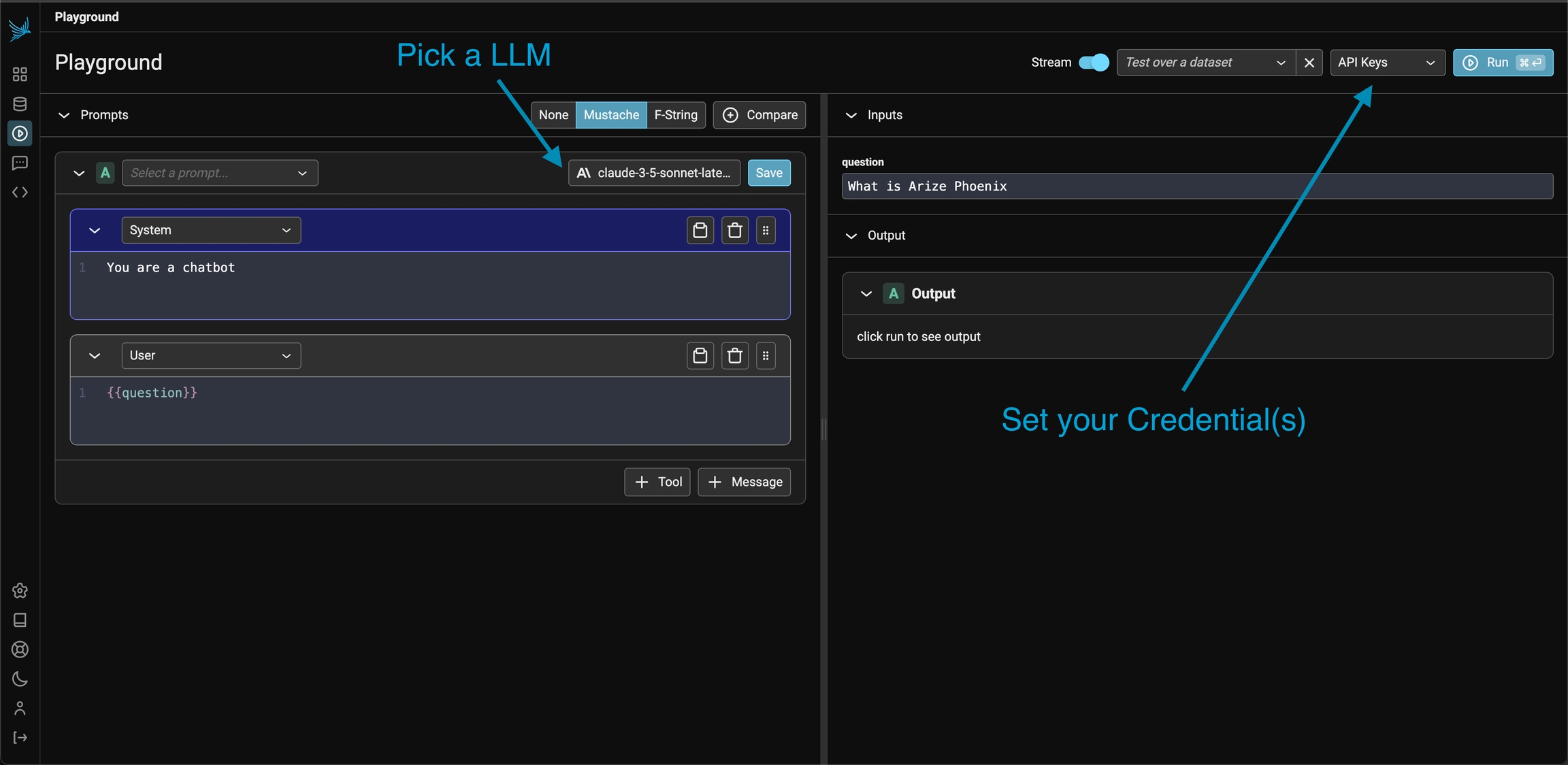
To first get started, you will first [Configure AI Providers](/docs/phoenix/prompt-engineering/how-to-prompts/configure-ai-providers). In the playground view, create a valid prompt for the LLM and click Run on the top right (or the `mod + enter`)
If successful you should see the LLM output stream out in the **Output** section of the UI.
## Prompt Editor
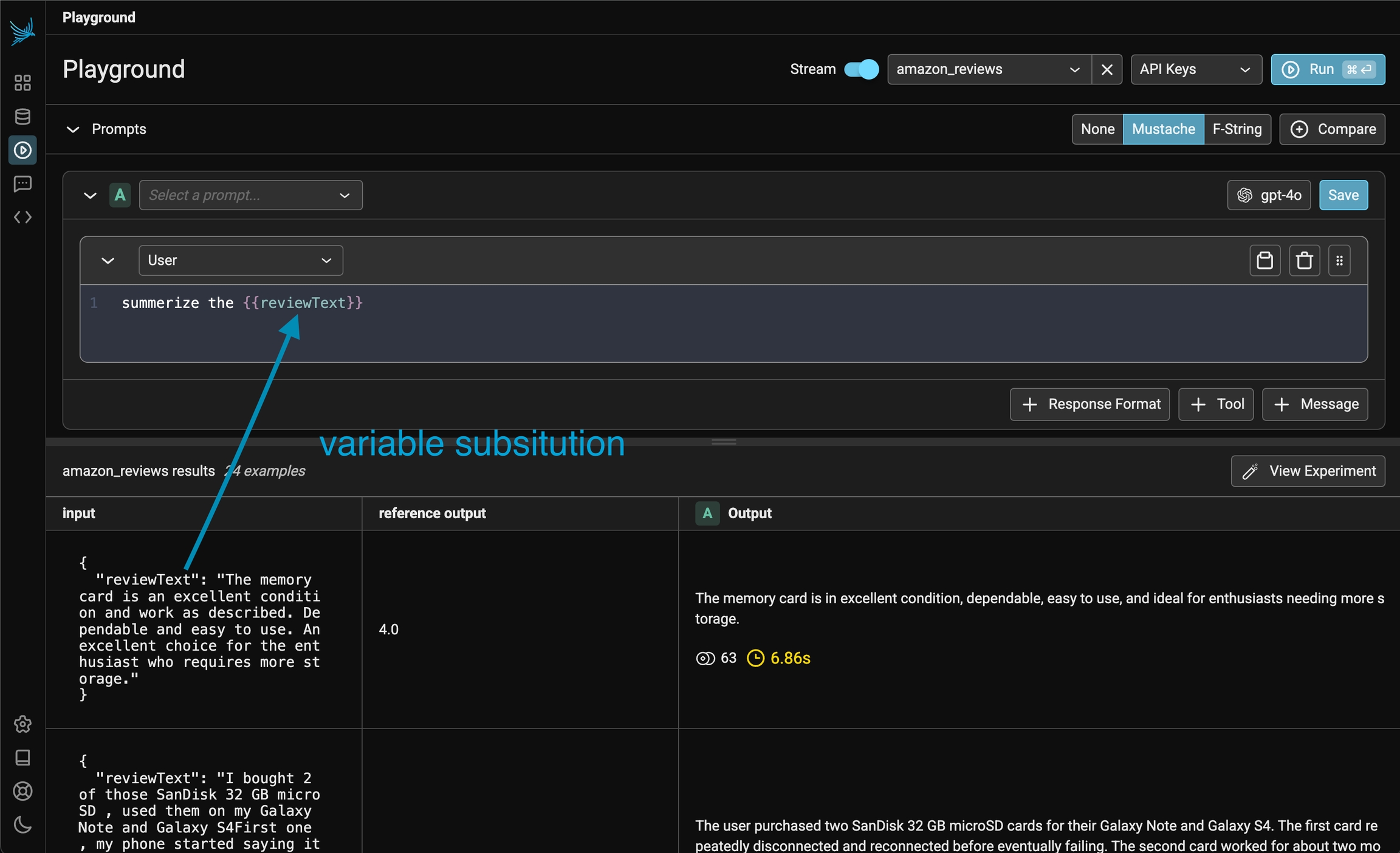
The prompt editor (typically on the left side of the screen) is where you define the [Prompts Concepts](/docs/phoenix/prompt-engineering/concepts-prompts/prompts-concepts#prompt-templates). You select the template language (**mustache** or\*\* f-string\*\*) on the toolbar. Whenever you type a variable placeholder in the prompt (say \{**\{question}}** for mustache), the variable to fill will show up in the **inputs** section. Input variables must either be filled in by hand or can be filled in via a dataset (where each row has key / value pairs for the input).
## Model Configuration
Every prompt instance can be configured to use a specific LLM and set of invocation parameters. Click on the model configuration button at the top of the prompt editor and configure your LLM of choice. Click on the "save as default" option to make your configuration sticky across playground sessions.
For OpenAI and Azure OpenAI models, you can select the **OpenAI API type** in the model configuration panel. Choose **Chat Completions** (`chat.completions.create`) or **Responses** (`responses.create`) depending on the model and feature set you need.
### Reasoning / extended thinking
For models that support reasoning, the model configuration panel exposes controls for how much the model thinks before responding:
* **Anthropic** (Claude 3.7 Sonnet and later) — toggle extended thinking between **disabled**, **adaptive** (the default), and **enabled** with an explicit `budget_tokens` allocation and a visibility toggle. You can also set output **effort** (`high` / `medium` / `low`). Enabling extended thinking automatically raises `max_tokens` to at least `budget_tokens + 1`.
* **Google** (Gemini 2.5 models) — set a `thinkingBudget` and/or `thinkingLevel` (`low` / `medium` / `high`).
Higher thinking budgets and effort levels can improve quality on hard tasks at the cost of latency and tokens; start with the defaults and raise them only when a task needs more reasoning.
## Comparing Prompts
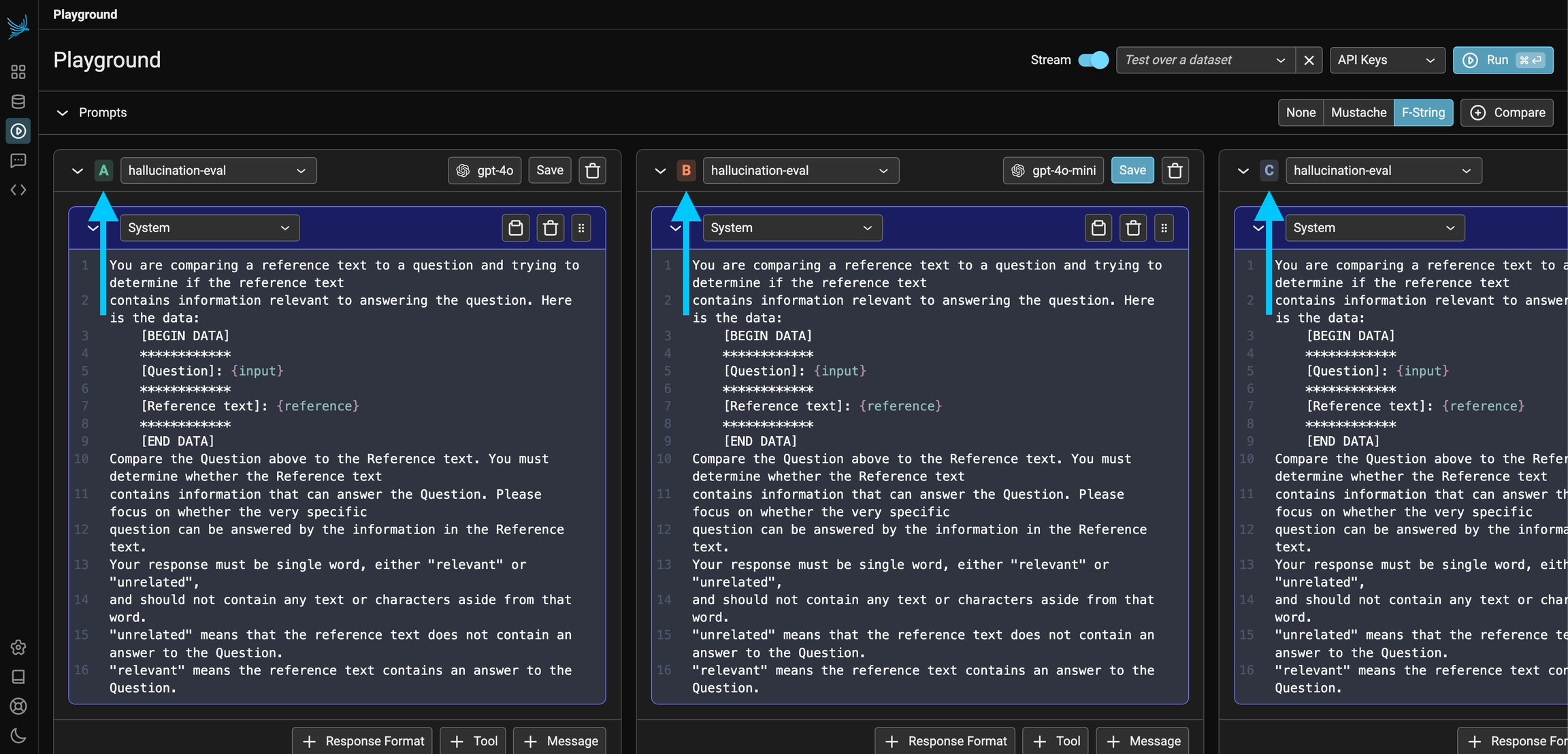
The Prompt Playground offers the capability to compare multiple prompt variants directly within the playground. Simply click the **+ Compare** button at the top of the first prompt to create duplicate instances. Each prompt variant manages its own independent template, model, and parameters. This allows you to quickly compare prompts (labeled A, B, C, and D in the UI) and run experiments to determine which prompt and model configuration is optimal for the given task.
## Using Datasets with Prompts
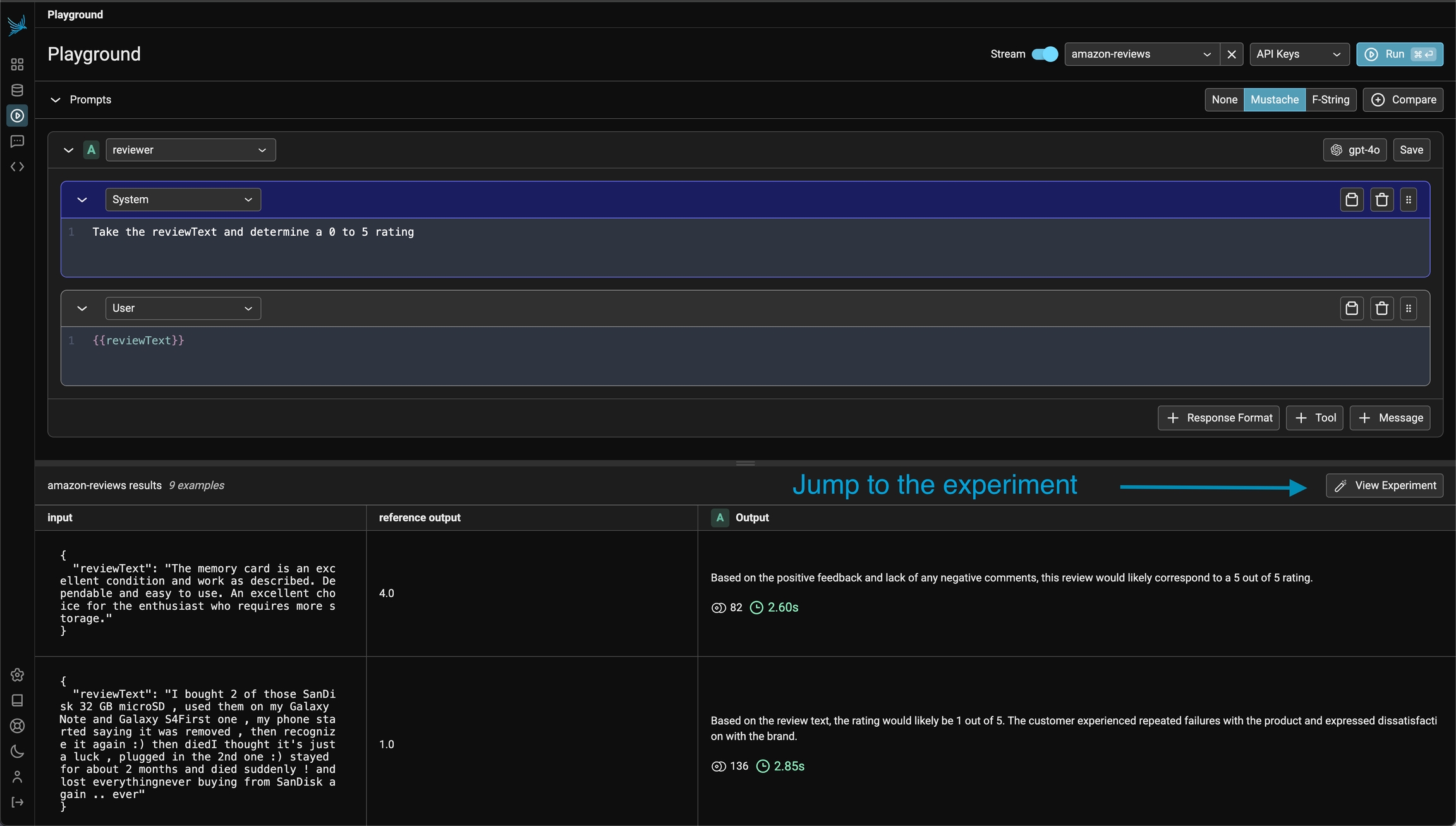
Phoenix lets you run a prompt (or multiple prompts) on a dataset. Simply [load a dataset](/docs/phoenix/datasets-and-experiments/how-to-datasets) containing the input variables you want to use in your prompt template. When you click **Run**, Phoenix will apply each configured prompt to every example in the dataset, invoking the LLM for all possible prompt-example combinations. The result of your playground runs will be tracked as an experiment under the loaded dataset (see [Playground Traces](/docs/phoenix/prompt-engineering/how-to-prompts/using-the-playground#playground-traces))
### Configuring Dataset Paths
By default, the playground reads template variables from `input`, so `{question}` will resolve against `input.question` automatically. If your dataset examples store inputs under a different nested object, you can configure where the playground should read prompt variables from:
1. Load a dataset
2. Click the **settings button** (gear icon) in the experiment toolbar next to the dataset selector
3. Set the **Prompt variable path** to the dot-notation path that contains your template variables (e.g., `input` or `payload.inputs`)
When set, Phoenix will resolve template variables against that object. For example, if your prompt uses `{question}` and your dataset example looks like:
```json theme={null}
{
"input": {
"question": "What is the weather in San Francisco?"
}
}
```
You can leave the default prompt variable path as `input`.
If you want to reference root-level fields directly (for example `{input.question}` and `{output.response}`), clear the prompt variable path so variables resolve from the root object. With this dataset example:
```json theme={null}
{
"input": {
"question": "What is the weather in San Francisco?"
},
"output": {
"response": "I can help with that."
}
}
```
You can use template variables like `{input.question}` and `{output.response}` in your prompt.
## Appending Conversation History
When running experiments over datasets, you can append conversation messages from your dataset examples to the prompt. This is useful for:
* **A/B testing models**: Compare how different models respond to the same conversation history
* **Testing system prompts**: Evaluate different system prompts against identical user conversations
* **Multi-turn conversation experiments**: Run experiments using existing conversation threads
### Setting the Appended Messages Path
To use this feature:
1. Load a dataset that contains conversation messages in OpenAI format
2. Click the **settings button** (gear icon) in the experiment toolbar next to the dataset selector
3. Enter the **dot-notation path** to the messages array in your dataset examples (e.g., `messages` or `input.messages`)
When you run the experiment, messages at the specified path will be appended to the **end of your prompt template** after template variables are applied. This makes it easy to keep your system prompt and initial instructions in the template while replaying real conversation history from the dataset.
### Dataset Format
Your dataset examples should contain messages in OpenAI's chat format:
```json theme={null}
{
"messages": [
{"role": "user", "content": "What is the weather in San Francisco?"},
{"role": "assistant", "content": "Let me check that for you."},
{"role": "user", "content": "Thanks! Also, what about New York?"}
]
}
```
The supported message roles are:
* `user` - User messages
* `assistant` - Assistant/AI responses
* `system` - System messages
* `tool` - Tool response messages (with `tool_call_id`)
For nested structures, use dot-notation paths:
```json theme={null}
{
"input": {
"messages": [
{"role": "user", "content": "Hello!"}
]
}
}
```
In this case, set the path to `input.messages`.
### Example: A/B Testing System Prompts
1. Create a dataset with conversation examples (user messages and expected context)
2. In the playground, configure two prompt variants (A and B) with different system prompts
3. Load your dataset and set the appended messages path to `messages`
4. Run the experiment to compare how each system prompt handles the same conversations
This approach lets you systematically evaluate prompt changes across many real-world conversation scenarios.
## Playground Traces
All invocations of an LLM via the playground is recorded for analysis, annotations, evaluations, and dataset curation.
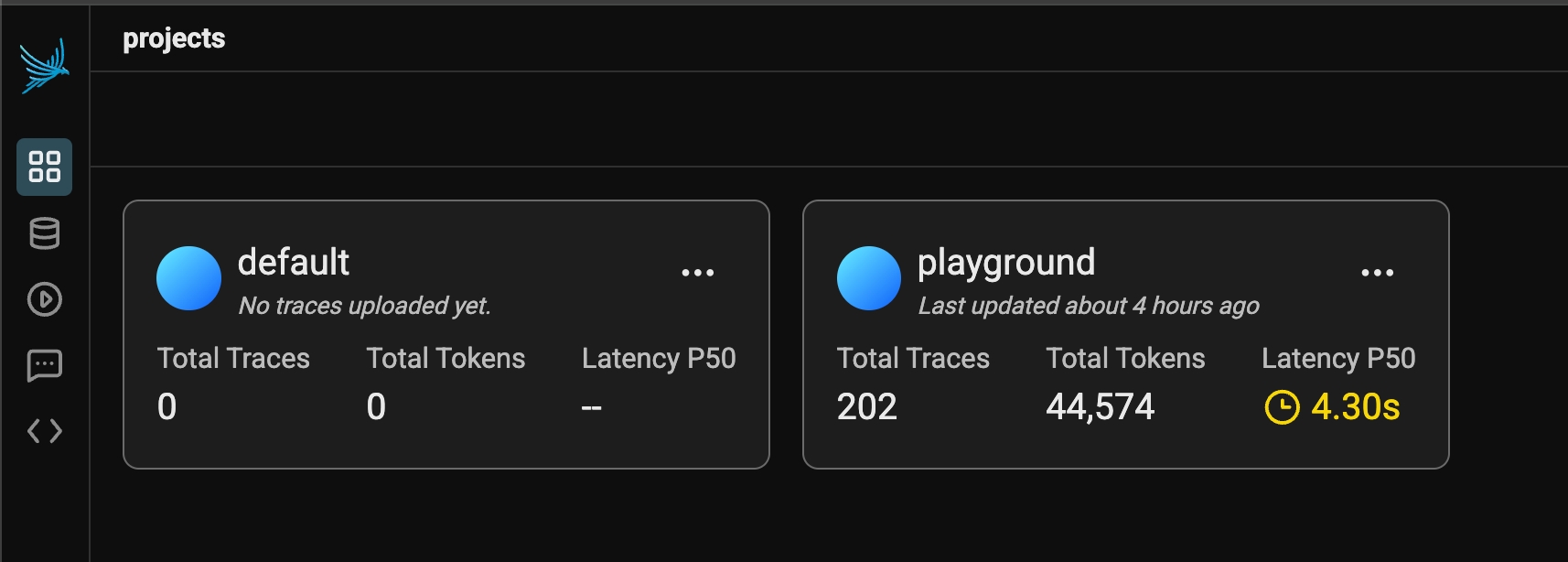
If you simply run an LLM in the playground using the free form inputs (e.g. not using a dataset), Your spans will be recorded in a project aptly titled "playground".
If however you run a prompt over dataset examples, the outputs and spans from your playground runs will be captured as an experiment. Each experiment will be named according to the prompt you ran the experiment over.
 ## Prompt Editor
The prompt editor (typically on the left side of the screen) is where you define the [Prompts Concepts](/docs/phoenix/prompt-engineering/concepts-prompts/prompts-concepts#prompt-templates). You select the template language (**mustache** or\*\* f-string\*\*) on the toolbar. Whenever you type a variable placeholder in the prompt (say \{**\{question}}** for mustache), the variable to fill will show up in the **inputs** section. Input variables must either be filled in by hand or can be filled in via a dataset (where each row has key / value pairs for the input).
## Prompt Editor
The prompt editor (typically on the left side of the screen) is where you define the [Prompts Concepts](/docs/phoenix/prompt-engineering/concepts-prompts/prompts-concepts#prompt-templates). You select the template language (**mustache** or\*\* f-string\*\*) on the toolbar. Whenever you type a variable placeholder in the prompt (say \{**\{question}}** for mustache), the variable to fill will show up in the **inputs** section. Input variables must either be filled in by hand or can be filled in via a dataset (where each row has key / value pairs for the input).
 ## Model Configuration
Every prompt instance can be configured to use a specific LLM and set of invocation parameters. Click on the model configuration button at the top of the prompt editor and configure your LLM of choice. Click on the "save as default" option to make your configuration sticky across playground sessions.
## Model Configuration
Every prompt instance can be configured to use a specific LLM and set of invocation parameters. Click on the model configuration button at the top of the prompt editor and configure your LLM of choice. Click on the "save as default" option to make your configuration sticky across playground sessions.

 ## Using Datasets with Prompts
Phoenix lets you run a prompt (or multiple prompts) on a dataset. Simply [load a dataset](/docs/phoenix/datasets-and-experiments/how-to-datasets) containing the input variables you want to use in your prompt template. When you click **Run**, Phoenix will apply each configured prompt to every example in the dataset, invoking the LLM for all possible prompt-example combinations. The result of your playground runs will be tracked as an experiment under the loaded dataset (see [Playground Traces](/docs/phoenix/prompt-engineering/how-to-prompts/using-the-playground#playground-traces))
## Using Datasets with Prompts
Phoenix lets you run a prompt (or multiple prompts) on a dataset. Simply [load a dataset](/docs/phoenix/datasets-and-experiments/how-to-datasets) containing the input variables you want to use in your prompt template. When you click **Run**, Phoenix will apply each configured prompt to every example in the dataset, invoking the LLM for all possible prompt-example combinations. The result of your playground runs will be tracked as an experiment under the loaded dataset (see [Playground Traces](/docs/phoenix/prompt-engineering/how-to-prompts/using-the-playground#playground-traces))
 ### Configuring Dataset Paths
By default, the playground reads template variables from `input`, so `{question}` will resolve against `input.question` automatically. If your dataset examples store inputs under a different nested object, you can configure where the playground should read prompt variables from:
1. Load a dataset
2. Click the **settings button** (gear icon) in the experiment toolbar next to the dataset selector
3. Set the **Prompt variable path** to the dot-notation path that contains your template variables (e.g., `input` or `payload.inputs`)
When set, Phoenix will resolve template variables against that object. For example, if your prompt uses `{question}` and your dataset example looks like:
```json theme={null}
{
"input": {
"question": "What is the weather in San Francisco?"
}
}
```
You can leave the default prompt variable path as `input`.
If you want to reference root-level fields directly (for example `{input.question}` and `{output.response}`), clear the prompt variable path so variables resolve from the root object. With this dataset example:
```json theme={null}
{
"input": {
"question": "What is the weather in San Francisco?"
},
"output": {
"response": "I can help with that."
}
}
```
You can use template variables like `{input.question}` and `{output.response}` in your prompt.
## Appending Conversation History
When running experiments over datasets, you can append conversation messages from your dataset examples to the prompt. This is useful for:
* **A/B testing models**: Compare how different models respond to the same conversation history
* **Testing system prompts**: Evaluate different system prompts against identical user conversations
* **Multi-turn conversation experiments**: Run experiments using existing conversation threads
### Setting the Appended Messages Path
To use this feature:
1. Load a dataset that contains conversation messages in OpenAI format
2. Click the **settings button** (gear icon) in the experiment toolbar next to the dataset selector
3. Enter the **dot-notation path** to the messages array in your dataset examples (e.g., `messages` or `input.messages`)
When you run the experiment, messages at the specified path will be appended to the **end of your prompt template** after template variables are applied. This makes it easy to keep your system prompt and initial instructions in the template while replaying real conversation history from the dataset.
### Dataset Format
Your dataset examples should contain messages in OpenAI's chat format:
```json theme={null}
{
"messages": [
{"role": "user", "content": "What is the weather in San Francisco?"},
{"role": "assistant", "content": "Let me check that for you."},
{"role": "user", "content": "Thanks! Also, what about New York?"}
]
}
```
The supported message roles are:
* `user` - User messages
* `assistant` - Assistant/AI responses
* `system` - System messages
* `tool` - Tool response messages (with `tool_call_id`)
For nested structures, use dot-notation paths:
```json theme={null}
{
"input": {
"messages": [
{"role": "user", "content": "Hello!"}
]
}
}
```
In this case, set the path to `input.messages`.
### Example: A/B Testing System Prompts
1. Create a dataset with conversation examples (user messages and expected context)
2. In the playground, configure two prompt variants (A and B) with different system prompts
3. Load your dataset and set the appended messages path to `messages`
4. Run the experiment to compare how each system prompt handles the same conversations
This approach lets you systematically evaluate prompt changes across many real-world conversation scenarios.
## Playground Traces
All invocations of an LLM via the playground is recorded for analysis, annotations, evaluations, and dataset curation.
If you simply run an LLM in the playground using the free form inputs (e.g. not using a dataset), Your spans will be recorded in a project aptly titled "playground".
### Configuring Dataset Paths
By default, the playground reads template variables from `input`, so `{question}` will resolve against `input.question` automatically. If your dataset examples store inputs under a different nested object, you can configure where the playground should read prompt variables from:
1. Load a dataset
2. Click the **settings button** (gear icon) in the experiment toolbar next to the dataset selector
3. Set the **Prompt variable path** to the dot-notation path that contains your template variables (e.g., `input` or `payload.inputs`)
When set, Phoenix will resolve template variables against that object. For example, if your prompt uses `{question}` and your dataset example looks like:
```json theme={null}
{
"input": {
"question": "What is the weather in San Francisco?"
}
}
```
You can leave the default prompt variable path as `input`.
If you want to reference root-level fields directly (for example `{input.question}` and `{output.response}`), clear the prompt variable path so variables resolve from the root object. With this dataset example:
```json theme={null}
{
"input": {
"question": "What is the weather in San Francisco?"
},
"output": {
"response": "I can help with that."
}
}
```
You can use template variables like `{input.question}` and `{output.response}` in your prompt.
## Appending Conversation History
When running experiments over datasets, you can append conversation messages from your dataset examples to the prompt. This is useful for:
* **A/B testing models**: Compare how different models respond to the same conversation history
* **Testing system prompts**: Evaluate different system prompts against identical user conversations
* **Multi-turn conversation experiments**: Run experiments using existing conversation threads
### Setting the Appended Messages Path
To use this feature:
1. Load a dataset that contains conversation messages in OpenAI format
2. Click the **settings button** (gear icon) in the experiment toolbar next to the dataset selector
3. Enter the **dot-notation path** to the messages array in your dataset examples (e.g., `messages` or `input.messages`)
When you run the experiment, messages at the specified path will be appended to the **end of your prompt template** after template variables are applied. This makes it easy to keep your system prompt and initial instructions in the template while replaying real conversation history from the dataset.
### Dataset Format
Your dataset examples should contain messages in OpenAI's chat format:
```json theme={null}
{
"messages": [
{"role": "user", "content": "What is the weather in San Francisco?"},
{"role": "assistant", "content": "Let me check that for you."},
{"role": "user", "content": "Thanks! Also, what about New York?"}
]
}
```
The supported message roles are:
* `user` - User messages
* `assistant` - Assistant/AI responses
* `system` - System messages
* `tool` - Tool response messages (with `tool_call_id`)
For nested structures, use dot-notation paths:
```json theme={null}
{
"input": {
"messages": [
{"role": "user", "content": "Hello!"}
]
}
}
```
In this case, set the path to `input.messages`.
### Example: A/B Testing System Prompts
1. Create a dataset with conversation examples (user messages and expected context)
2. In the playground, configure two prompt variants (A and B) with different system prompts
3. Load your dataset and set the appended messages path to `messages`
4. Run the experiment to compare how each system prompt handles the same conversations
This approach lets you systematically evaluate prompt changes across many real-world conversation scenarios.
## Playground Traces
All invocations of an LLM via the playground is recorded for analysis, annotations, evaluations, and dataset curation.
If you simply run an LLM in the playground using the free form inputs (e.g. not using a dataset), Your spans will be recorded in a project aptly titled "playground".
 If however you run a prompt over dataset examples, the outputs and spans from your playground runs will be captured as an experiment. Each experiment will be named according to the prompt you ran the experiment over.