> ## Documentation Index
> Fetch the complete documentation index at: https://arizeai-433a7140.mintlify.site/llms.txt
> Use this file to discover all available pages before exploring further.
# Configure AI Providers
> Phoenix natively integrates with OpenAI, Azure OpenAI, Anthropic, and Google AI Studio (gemini) to make it easy to test changes to your prompts. In addition to the above, since many AI providers (deepseek, ollama) can be used directly with the OpenAI client, you can talk to any OpenAI compatible LLM provider.
## Credentials
To securely provide your API keys, you have four options.
1. **Browser**: Store them in your browser's local storage.
2. **Database (Secrets)**: Save them encrypted in the Phoenix database.
3. **Database (Custom Providers)**: Configure named providers with specific credentials.
4. **Environment Variables**: Set them as environment variables on the server.
For built-in providers (e.g., selecting "OpenAI" directly), Phoenix resolves credentials in this order: **Browser > Database (Secrets) > Environment Variables**.
Custom Providers (Option 3) are selected explicitly and use their own configured credentials.
### Option 1: Store API Keys in the Browser
API keys can be entered in the playground application via the API Keys dropdown menu. This option stores API keys in your browser's local storage.
 ### Option 2: Save Secrets (Encrypted) in the Database
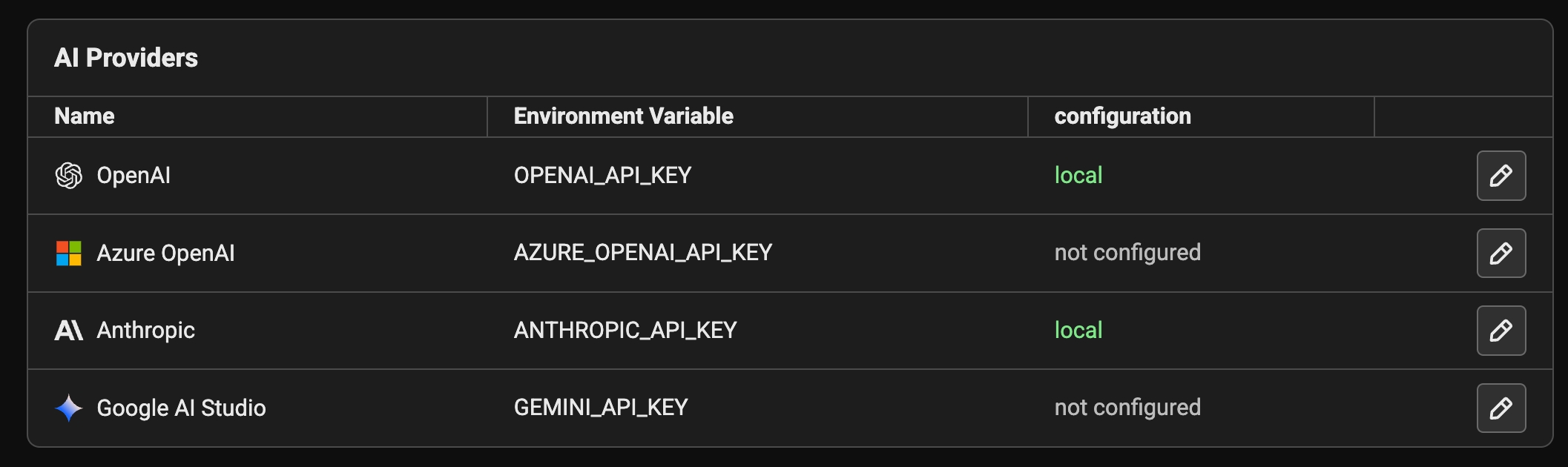
You can save your API keys persistently in the Phoenix database. Navigate to the **Settings** page, select the **AI Providers** tab, and click the edit icon for a provider. In the dialog, toggle the view to **Secrets** and enter your keys. Keys are stored encrypted at rest in the `secrets` table. If you change the server's `PHOENIX_SECRET` environment variable, these entries will become unreadable and must be updated.
### Option 3: Custom Providers
Custom providers let you store provider credentials and routing settings on the server and reuse them across the playground and prompt versions.
For detailed instructions on configuring custom providers, see the [Custom AI Providers](/docs/phoenix/settings/custom-ai-providers) settings page.
**Using Custom Providers in the Playground and Prompts**
Custom providers appear in model selection menus as their own provider group. When you select one:
1. The model list mirrors the built-in model list for that SDK.
2. Routing fields (base URL, Azure endpoint, AWS region) are pulled from the custom provider config.
3. You can still add request-level custom headers from the model configuration panel.
Prompt versions and evaluators use custom providers when a prompt version is saved with a custom provider selection. If you do not select a custom provider for a prompt, Phoenix falls back to environment variables or saved secrets for the built-in provider.
### Option 4: Set Environment Variables on Server Side
If the following variables are set in the server environment, they'll be used at API invocation time.
| Provider | Environment Variable | Platform Link |
| :----------- | :------------------------------------------------------------------------------------------------------------------------------------------------ | :----------------------------------------------------------------------------------------------------------------------------------------------- |
| OpenAI | - OPENAI\_API\_KEY | [https://platform.openai.com/](https://platform.openai.com/) |
| Azure OpenAI | - AZURE\_OPENAI\_API\_KEY
### Option 2: Save Secrets (Encrypted) in the Database
You can save your API keys persistently in the Phoenix database. Navigate to the **Settings** page, select the **AI Providers** tab, and click the edit icon for a provider. In the dialog, toggle the view to **Secrets** and enter your keys. Keys are stored encrypted at rest in the `secrets` table. If you change the server's `PHOENIX_SECRET` environment variable, these entries will become unreadable and must be updated.
### Option 3: Custom Providers
Custom providers let you store provider credentials and routing settings on the server and reuse them across the playground and prompt versions.
For detailed instructions on configuring custom providers, see the [Custom AI Providers](/docs/phoenix/settings/custom-ai-providers) settings page.
**Using Custom Providers in the Playground and Prompts**
Custom providers appear in model selection menus as their own provider group. When you select one:
1. The model list mirrors the built-in model list for that SDK.
2. Routing fields (base URL, Azure endpoint, AWS region) are pulled from the custom provider config.
3. You can still add request-level custom headers from the model configuration panel.
Prompt versions and evaluators use custom providers when a prompt version is saved with a custom provider selection. If you do not select a custom provider for a prompt, Phoenix falls back to environment variables or saved secrets for the built-in provider.
### Option 4: Set Environment Variables on Server Side
If the following variables are set in the server environment, they'll be used at API invocation time.
| Provider | Environment Variable | Platform Link |
| :----------- | :------------------------------------------------------------------------------------------------------------------------------------------------ | :----------------------------------------------------------------------------------------------------------------------------------------------- |
| OpenAI | - OPENAI\_API\_KEY | [https://platform.openai.com/](https://platform.openai.com/) |
| Azure OpenAI | - AZURE\_OPENAI\_API\_KEY
- AZURE\_OPENAI\_ENDPOINT
- OPENAI\_API\_VERSION | [https://azure.microsoft.com/en-us/products/ai-services/openai-service/](https://azure.microsoft.com/en-us/products/ai-services/openai-service/) |
| Anthropic | - ANTHROPIC\_API\_KEY | [https://console.anthropic.com/](https://console.anthropic.com/) |
| Gemini | - GEMINI\_API\_KEY or GOOGLE\_API\_KEY | [https://aistudio.google.com/](https://aistudio.google.com/) |
| AWS Bedrock | - AWS\_ACCESS\_KEY\_ID
- AWS\_SECRET\_ACCESS\_KEY
- AWS\_SESSION\_TOKEN
- AWS\_BEARER\_TOKEN\_BEDROCK | [https://aws.amazon.com/bedrock/](https://aws.amazon.com/bedrock/) |
| Cerebras | - CEREBRAS\_API\_KEY | [https://cloud.cerebras.ai/](https://cloud.cerebras.ai/) |
| Fireworks | - FIREWORKS\_API\_KEY | [https://fireworks.ai/](https://fireworks.ai/) |
| Groq | - GROQ\_API\_KEY | [https://console.groq.com/](https://console.groq.com/) |
| Moonshot | - MOONSHOT\_API\_KEY | [https://platform.moonshot.ai/](https://platform.moonshot.ai/) |
For Azure, you can also set the following server-side environment variables: `AZURE_TENANT_ID`, `AZURE_CLIENT_ID`, and `AZURE_FEDERATED_TOKEN_FILE` to use [WorkloadIdentityCredential](https://learn.microsoft.com/en-us/python/api/azure-identity/azure.identity.workloadidentitycredential?view=azure-python).
**AWS Bedrock Authentication**
When using AWS Bedrock, Phoenix leverages the standard [boto3 credential chain](https://boto3.amazonaws.com/v1/documentation/api/latest/guide/credentials.html) or the `AWS_BEARER_TOKEN_BEDROCK` environment variable. This means if you are running Phoenix on an EC2 instance with an assigned IAM role, have `~/.aws/credentials` configured, or have exported `AWS_BEARER_TOKEN_BEDROCK`, you do not need to explicitly provide credentials.
To use this fallback behavior, **do not fill out the AWS credentials in the Playground settings**. The client will automatically discover and use the available credentials from the environment.
## Using OpenAI Compatible LLMs
### Option 1: Configure the base URL in the prompt playground
Since you can configure the base URL for the OpenAI client, you can use the prompt playground with a variety of OpenAI Client compatible LLMs such as **Ollama**, **DeepSeek**, and more.\\
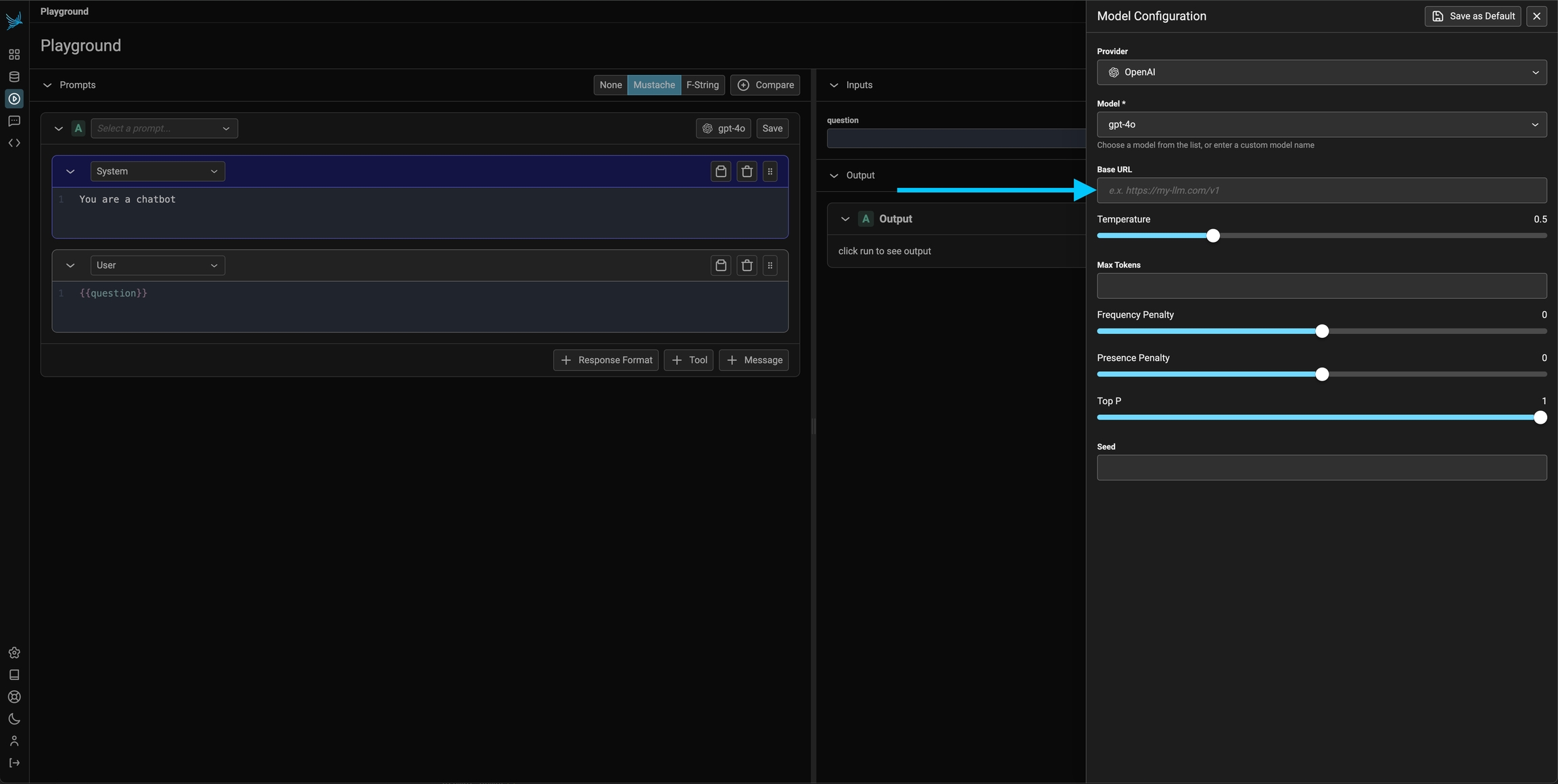 If you are using an LLM provider, you will have to set the OpenAI api key to that provider's api key for it to work.
OpenAI Client compatible providers Include
| Provider | Base URL | Docs |
| :-------- | :----------------------------------------------------------------------------- | :--------------------------------------------------------------------------------------------------------------------- |
| DeepSeek | [https://api.deepseek.com](https://api.deepseek.com) | [https://api-docs.deepseek.com/](https://api-docs.deepseek.com/) |
| Ollama | [http://localhost:11434/v1/](http://localhost:11434/v1/) | [https://github.com/ollama/ollama/blob/main/docs/openai.md](https://github.com/ollama/ollama/blob/main/docs/openai.md) |
| Cerebras | [https://api.cerebras.ai/v1](https://api.cerebras.ai/v1) | [https://inference-docs.cerebras.ai/](https://inference-docs.cerebras.ai/) |
| Fireworks | [https://api.fireworks.ai/inference/v1](https://api.fireworks.ai/inference/v1) | [https://docs.fireworks.ai/](https://docs.fireworks.ai/) |
| Groq | [https://api.groq.com/openai/v1](https://api.groq.com/openai/v1) | [https://console.groq.com/docs/](https://console.groq.com/docs/) |
| Moonshot | [https://api.moonshot.ai/v1](https://api.moonshot.ai/v1) | [https://platform.moonshot.ai/docs/](https://platform.moonshot.ai/docs/) |
### Option 2: Server side configuration of the OpenAI base URL
Optionally, the server can be configured with the `OPENAI_BASE_URL` environment variable to change target any OpenAI compatible REST API.
For a Phoenix instance served over HTTPS, this may fail due to mixed-content restrictions. In that case, you'd see a Connection Error appear.
If there is a LLM endpoint you would like to use, reach out to [mailto://phoenix-support@arize.com](mailto://phoenix-support@arize.com)
OpenAI and Azure OpenAI support two API types: **Chat Completions** (`chat.completions.create`) and **Responses** (`responses.create`). Both built-in and custom providers now default to the **Responses** API. For built-in providers, override the API type per model from the model configuration panel in the Playground. For custom providers, set the API type in the provider configuration.
## Custom Headers
Phoenix supports adding custom HTTP headers to requests sent to AI providers. This is useful for additional credentials, routing needs, or cost tracking when using custom LLM proxies.
### Configuring Custom Headers
1. Click on the model configuration button in the playground
2. Scroll down to the "Custom Headers" section
3. Add your headers in JSON format:
```json theme={null}
{
"application-name": "phoenix"
}
```
## Set a Default Provider and Model
You can choose which provider and model the Prompt Playground selects by default. Go to **Settings → AI Providers** and use the **AI Provider Settings** card to pick a default provider and model. The preference is saved in your browser and applied the first time the playground opens in a session, so you don't have to reselect your usual model each time.
This is distinct from the playground's **"save as default"** control in the model configuration panel: the Settings preference chooses the initial provider/model, while "save as default" makes a full model configuration (including invocation parameters) sticky across sessions.
If you are using an LLM provider, you will have to set the OpenAI api key to that provider's api key for it to work.
OpenAI Client compatible providers Include
| Provider | Base URL | Docs |
| :-------- | :----------------------------------------------------------------------------- | :--------------------------------------------------------------------------------------------------------------------- |
| DeepSeek | [https://api.deepseek.com](https://api.deepseek.com) | [https://api-docs.deepseek.com/](https://api-docs.deepseek.com/) |
| Ollama | [http://localhost:11434/v1/](http://localhost:11434/v1/) | [https://github.com/ollama/ollama/blob/main/docs/openai.md](https://github.com/ollama/ollama/blob/main/docs/openai.md) |
| Cerebras | [https://api.cerebras.ai/v1](https://api.cerebras.ai/v1) | [https://inference-docs.cerebras.ai/](https://inference-docs.cerebras.ai/) |
| Fireworks | [https://api.fireworks.ai/inference/v1](https://api.fireworks.ai/inference/v1) | [https://docs.fireworks.ai/](https://docs.fireworks.ai/) |
| Groq | [https://api.groq.com/openai/v1](https://api.groq.com/openai/v1) | [https://console.groq.com/docs/](https://console.groq.com/docs/) |
| Moonshot | [https://api.moonshot.ai/v1](https://api.moonshot.ai/v1) | [https://platform.moonshot.ai/docs/](https://platform.moonshot.ai/docs/) |
### Option 2: Server side configuration of the OpenAI base URL
Optionally, the server can be configured with the `OPENAI_BASE_URL` environment variable to change target any OpenAI compatible REST API.
For a Phoenix instance served over HTTPS, this may fail due to mixed-content restrictions. In that case, you'd see a Connection Error appear.
If there is a LLM endpoint you would like to use, reach out to [mailto://phoenix-support@arize.com](mailto://phoenix-support@arize.com)
OpenAI and Azure OpenAI support two API types: **Chat Completions** (`chat.completions.create`) and **Responses** (`responses.create`). Both built-in and custom providers now default to the **Responses** API. For built-in providers, override the API type per model from the model configuration panel in the Playground. For custom providers, set the API type in the provider configuration.
## Custom Headers
Phoenix supports adding custom HTTP headers to requests sent to AI providers. This is useful for additional credentials, routing needs, or cost tracking when using custom LLM proxies.
### Configuring Custom Headers
1. Click on the model configuration button in the playground
2. Scroll down to the "Custom Headers" section
3. Add your headers in JSON format:
```json theme={null}
{
"application-name": "phoenix"
}
```
## Set a Default Provider and Model
You can choose which provider and model the Prompt Playground selects by default. Go to **Settings → AI Providers** and use the **AI Provider Settings** card to pick a default provider and model. The preference is saved in your browser and applied the first time the playground opens in a session, so you don't have to reselect your usual model each time.
This is distinct from the playground's **"save as default"** control in the model configuration panel: the Settings preference chooses the initial provider/model, while "save as default" makes a full model configuration (including invocation parameters) sticky across sessions.