> ## Documentation Index
> Fetch the complete documentation index at: https://arizeai-433a7140.mintlify.site/llms.txt
> Use this file to discover all available pages before exploring further.
# Claude Code
> Trace Claude Code CLI and Agent SDK sessions, tool usage, and token costs in Phoenix.
> Trace Claude Code CLI sessions, tool usage, and token costs with Phoenix for full observability.
Trace your [Claude Code](https://code.claude.com/docs/en/overview) sessions in Phoenix with the [coding-harness-tracing](https://github.com/Arize-ai/coding-harness-tracing) plugin — every turn shows up as a trace with the model call, each tool it runs, and token cost, grouped into its session. No application code changes required: the plugin hooks into Claude Code's lifecycle events and streams [OpenInference](https://github.com/Arize-ai/openinference) spans to Phoenix. Works with both the Claude Code CLI and the Claude Agent SDK.
**Use this to trace Claude Code (or Agent SDK) *sessions* via the plugin — enabled through a settings file, no in-code instrumentor.** If instead you are **building an application** with the Claude Agent SDK and want standard OpenInference agent, tool, and LLM spans in your app's code, use the [Claude Agent SDK](/docs/phoenix/integrations/python/claude-agent-sdk) instrumentor instead.
## Launch Phoenix
The fastest way to get started with Phoenix is by signing up for a [free Phoenix Cloud account](https://app.arize.com/auth/phoenix/signup). If you prefer, you can also run Phoenix in a [notebook](/docs/phoenix/environments#notebooks), [self-host it](/docs/phoenix/environments#container), or use it directly from your [terminal](/docs/phoenix/environments#terminal).
Go to the settings page in your Phoenix instance to find your **endpoint** and **API key**. A self-hosted Phoenix defaults to `http://localhost:6006`; the API key is only required when auth is enabled.
## Install
Pick whichever fits how you work. The **curl installer** is the simplest — it runs a short wizard that saves your Phoenix credentials for you. Use the **marketplace plugin** if you already manage Claude Code plugins, or a **local clone** if you want the source on hand.
### Claude Code Marketplace
```bash theme={null}
claude plugin marketplace add Arize-ai/coding-harness-tracing
claude plugin install claude-code-tracing@coding-harness-tracing
```
The marketplace flow registers the hooks but skips the interactive wizard, so backend credentials and content-logging preferences must be set directly in `~/.claude/settings.json` under `env` (see [Configuration](#configuration)).
### Curl installer (recommended)
**macOS / Linux:**
```bash theme={null}
curl -sSL https://raw.githubusercontent.com/Arize-ai/coding-harness-tracing/main/install.sh | bash -s -- claude
```
**Windows (PowerShell):**
```powershell theme={null}
iwr -useb https://raw.githubusercontent.com/Arize-ai/coding-harness-tracing/main/install.bat -OutFile $env:TEMP\install.bat
& $env:TEMP\install.bat claude
```
The installer prompts for your backend — select **Phoenix**, then enter your endpoint and optional API key — and your project name, writes them to `~/.arize/harness/config.json`, and registers the hooks in `~/.claude/settings.json`.
### Local clone
```bash theme={null}
git clone https://github.com/Arize-ai/coding-harness-tracing.git
cd coding-harness-tracing
./install.sh claude # macOS / Linux
install.bat claude # Windows
```
## Configuration
The curl and local installers write credentials to `~/.arize/harness/config.json`. Environment variables in `~/.claude/settings.json` take precedence and are required for the marketplace install path.
```json theme={null}
{
"env": {
"PHOENIX_ENDPOINT": "http://localhost:6006",
"PHOENIX_API_KEY": "",
"PHOENIX_PROJECT": "claude-code",
"ARIZE_TRACE_ENABLED": "true"
}
}
```
`PHOENIX_API_KEY` is optional — omit it when your Phoenix instance has no auth. On the Phoenix backend, set the project name with `PHOENIX_PROJECT` (or `PHOENIX_PROJECT_NAME`); `ARIZE_PROJECT_NAME` is Arize-only and ignored here. `ARIZE_TRACE_ENABLED` is a backend-agnostic harness setting and keeps the `ARIZE_` prefix regardless of destination.
### Redaction controls
Each `ARIZE_LOG_*` flag accepts `"true"` or `"false"` and defaults to `"true"`. Set to `"false"` to opt out per category:
```json theme={null}
{
"env": {
"ARIZE_LOG_PROMPTS": "false",
"ARIZE_LOG_TOOL_DETAILS": "false",
"ARIZE_LOG_TOOL_CONTENT": "false"
}
}
```
| Flag | Redacts |
| :----------------------- | :-------------------------------------- |
| `ARIZE_LOG_PROMPTS` | User prompt and assistant response text |
| `ARIZE_LOG_TOOL_DETAILS` | Tool names and arguments |
| `ARIZE_LOG_TOOL_CONTENT` | Tool call output content |
## Observe
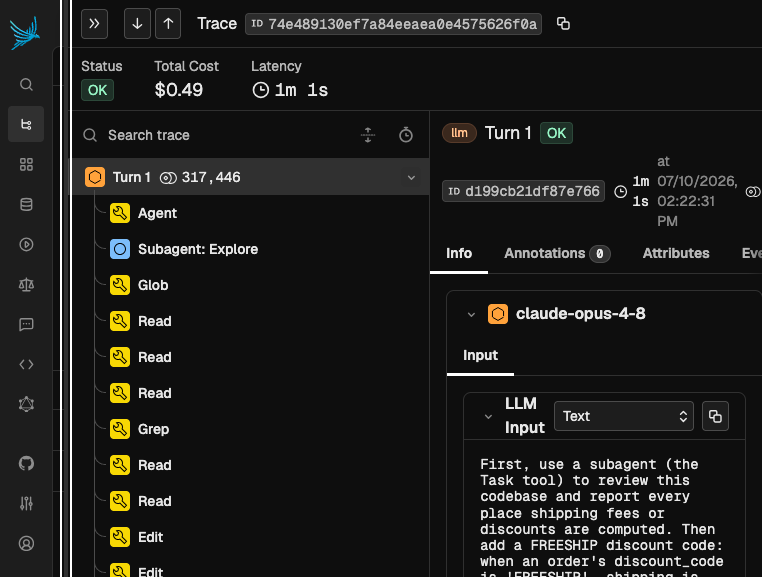
Now that you have tracing set up, all Claude Code sessions stream to your Phoenix instance for observability and evaluation. You'll see:
* **Turn traces** — each conversation turn (user prompt → assistant response)
* **LLM spans** — Claude's responses with model info and token counts
* **Tool spans** — nested spans for each tool call with inputs, outputs, and duration
* **Subagent spans** — activity from any subagents Claude spawns
* **Session grouping** — all turns from the same session grouped by `session_id`
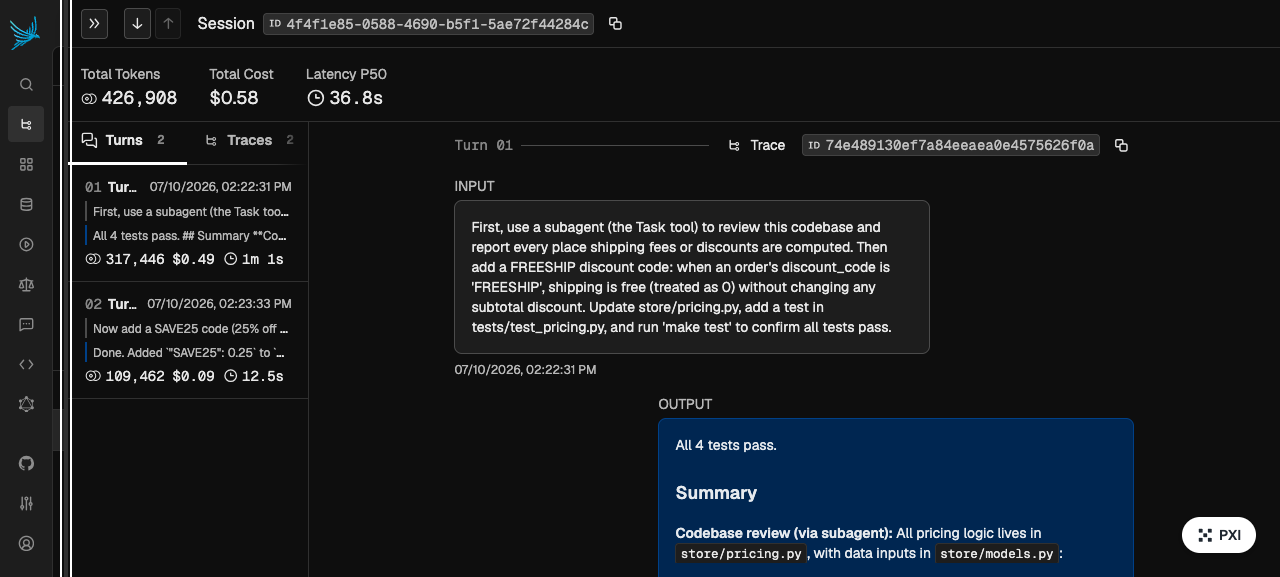 Drill into any turn trace to inspect the full span tree, including model generations, tool calls, and subagent activity.
 ## Agent SDK Setup
The tracing plugin also works with the [Claude Agent SDK](https://platform.claude.com/docs/en/agent-sdk/overview) in both Python and TypeScript. The SDK loads the plugin locally — no marketplace install is required — but the setup must be done in your application code before the SDK session starts, so the agent cannot configure it at runtime.
You must use `ClaudeSDKClient`. The standalone `query()` function does not support hooks, so tracing will not work with it.
### 1. Locate the plugin
The plugin path depends on how you installed the harness:
* **Installed via the Claude Code CLI marketplace:** the plugin is cached under `~/.claude/plugins/cache/coding-harness-tracing/claude-code-tracing//`, where `` matches the installed plugin version (for example `1.0.3`).
* **Installed via the curl or local installer:** the plugin lives at `~/.arize/harness/tracing/claude_code`.
* **Not installed:** clone the repo into your project — the plugin path is `./coding-harness-tracing/claude-code-tracing`:
```bash theme={null}
git clone https://github.com/Arize-ai/coding-harness-tracing.git
```
### 2. Create a settings file
The SDK spawns a Claude Code subprocess that does not inherit your shell environment, so tracing env vars must be passed through a settings file referenced from `ClaudeAgentOptions`:
```json theme={null}
{
"env": {
"ARIZE_TRACE_ENABLED": "true",
"PHOENIX_ENDPOINT": "http://localhost:6006",
"PHOENIX_API_KEY": "",
"PHOENIX_PROJECT": "claude-code"
}
}
```
The same `ARIZE_LOG_*` redaction flags from [Configuration](#configuration) apply here.
### 3. Wire the plugin into your app
Pass the plugin path and settings file to `ClaudeSDKClient`:
```python theme={null}
from claude_agent_sdk import ClaudeAgentOptions, ClaudeSDKClient
PLUGIN_PATH = "./coding-harness-tracing/claude-code-tracing" # or your install path
options = ClaudeAgentOptions(
plugins=[{"type": "local", "path": PLUGIN_PATH}],
settings="./settings.local.json",
)
async with ClaudeSDKClient(options=options) as client:
await client.query("Your prompt here")
async for message in client.receive_response():
print(message)
```
```typescript theme={null}
import { ClaudeSDKClient } from "@anthropic-ai/claude-agent-sdk";
const PLUGIN_PATH = "./coding-harness-tracing/claude-code-tracing"; // or your install path
const client = new ClaudeSDKClient({
plugins: [{ type: "local", path: PLUGIN_PATH }],
settings: "./settings.local.json",
});
await client.connect();
await client.query("Your prompt here");
for await (const message of client.receiveResponse()) {
console.log(message);
}
await client.close();
```
If you installed via the curl or local installer, the harness ships a Python convenience helper that returns a pre-configured `ClaudeAgentOptions` (plugin path + `setting_sources=["user"]` so user-level Claude settings are honored):
```python theme={null}
from tracing.claude_code.agent_sdk import claude_options
async with ClaudeSDKClient(options=claude_options()) as client:
...
```
### Validate
Add `"ARIZE_DRY_RUN": "true"` to your settings file to verify hooks fire without sending data, and tail `~/.arize/harness/logs/claude-code.log` to confirm activity.
### Hook parity
| SDK | Coverage |
| :------------- | :---------------------------------------------------------------------------------------------------------------------------------------------------------------------------------------------------------------------------- |
| **TypeScript** | Full parity — all 16 hooks fire, including `SessionStart`, `Notification`, `PermissionRequest`, and `SessionEnd`. |
| **Python** | `SessionStart`, `SessionEnd`, `Notification`, and `PermissionRequest` are not available. Session state is lazily initialized on the first `UserPromptSubmit`; core tracing (LLM, tool, and subagent spans) still works fully. |
## Reference
For the full list of environment variables, default file paths, and troubleshooting steps, see the [Claude Code tracing README](https://github.com/Arize-ai/coding-harness-tracing/blob/main/tracing/claude_code/README.md).
## Uninstall
**Marketplace install:**
```bash theme={null}
claude plugin uninstall claude-code-tracing@coding-harness-tracing
claude plugin marketplace remove Arize-ai/coding-harness-tracing
```
**Curl or local install:**
```bash theme={null}
curl -sSL https://raw.githubusercontent.com/Arize-ai/coding-harness-tracing/main/install.sh | bash -s -- uninstall claude
```
## Resources
## Agent SDK Setup
The tracing plugin also works with the [Claude Agent SDK](https://platform.claude.com/docs/en/agent-sdk/overview) in both Python and TypeScript. The SDK loads the plugin locally — no marketplace install is required — but the setup must be done in your application code before the SDK session starts, so the agent cannot configure it at runtime.
You must use `ClaudeSDKClient`. The standalone `query()` function does not support hooks, so tracing will not work with it.
### 1. Locate the plugin
The plugin path depends on how you installed the harness:
* **Installed via the Claude Code CLI marketplace:** the plugin is cached under `~/.claude/plugins/cache/coding-harness-tracing/claude-code-tracing//`, where `` matches the installed plugin version (for example `1.0.3`).
* **Installed via the curl or local installer:** the plugin lives at `~/.arize/harness/tracing/claude_code`.
* **Not installed:** clone the repo into your project — the plugin path is `./coding-harness-tracing/claude-code-tracing`:
```bash theme={null}
git clone https://github.com/Arize-ai/coding-harness-tracing.git
```
### 2. Create a settings file
The SDK spawns a Claude Code subprocess that does not inherit your shell environment, so tracing env vars must be passed through a settings file referenced from `ClaudeAgentOptions`:
```json theme={null}
{
"env": {
"ARIZE_TRACE_ENABLED": "true",
"PHOENIX_ENDPOINT": "http://localhost:6006",
"PHOENIX_API_KEY": "",
"PHOENIX_PROJECT": "claude-code"
}
}
```
The same `ARIZE_LOG_*` redaction flags from [Configuration](#configuration) apply here.
### 3. Wire the plugin into your app
Pass the plugin path and settings file to `ClaudeSDKClient`:
```python theme={null}
from claude_agent_sdk import ClaudeAgentOptions, ClaudeSDKClient
PLUGIN_PATH = "./coding-harness-tracing/claude-code-tracing" # or your install path
options = ClaudeAgentOptions(
plugins=[{"type": "local", "path": PLUGIN_PATH}],
settings="./settings.local.json",
)
async with ClaudeSDKClient(options=options) as client:
await client.query("Your prompt here")
async for message in client.receive_response():
print(message)
```
```typescript theme={null}
import { ClaudeSDKClient } from "@anthropic-ai/claude-agent-sdk";
const PLUGIN_PATH = "./coding-harness-tracing/claude-code-tracing"; // or your install path
const client = new ClaudeSDKClient({
plugins: [{ type: "local", path: PLUGIN_PATH }],
settings: "./settings.local.json",
});
await client.connect();
await client.query("Your prompt here");
for await (const message of client.receiveResponse()) {
console.log(message);
}
await client.close();
```
If you installed via the curl or local installer, the harness ships a Python convenience helper that returns a pre-configured `ClaudeAgentOptions` (plugin path + `setting_sources=["user"]` so user-level Claude settings are honored):
```python theme={null}
from tracing.claude_code.agent_sdk import claude_options
async with ClaudeSDKClient(options=claude_options()) as client:
...
```
### Validate
Add `"ARIZE_DRY_RUN": "true"` to your settings file to verify hooks fire without sending data, and tail `~/.arize/harness/logs/claude-code.log` to confirm activity.
### Hook parity
| SDK | Coverage |
| :------------- | :---------------------------------------------------------------------------------------------------------------------------------------------------------------------------------------------------------------------------- |
| **TypeScript** | Full parity — all 16 hooks fire, including `SessionStart`, `Notification`, `PermissionRequest`, and `SessionEnd`. |
| **Python** | `SessionStart`, `SessionEnd`, `Notification`, and `PermissionRequest` are not available. Session state is lazily initialized on the first `UserPromptSubmit`; core tracing (LLM, tool, and subagent spans) still works fully. |
## Reference
For the full list of environment variables, default file paths, and troubleshooting steps, see the [Claude Code tracing README](https://github.com/Arize-ai/coding-harness-tracing/blob/main/tracing/claude_code/README.md).
## Uninstall
**Marketplace install:**
```bash theme={null}
claude plugin uninstall claude-code-tracing@coding-harness-tracing
claude plugin marketplace remove Arize-ai/coding-harness-tracing
```
**Curl or local install:**
```bash theme={null}
curl -sSL https://raw.githubusercontent.com/Arize-ai/coding-harness-tracing/main/install.sh | bash -s -- uninstall claude
```
## Resources