> ## Documentation Index
> Fetch the complete documentation index at: https://arizeai-433a7140.mintlify.site/llms.txt
> Use this file to discover all available pages before exploring further.
# Splits
> How to run experiments over select splits of your dataset for targeted experimentation
dataset splits are available in `arize-phoenix` [12.7.0](https://github.com/Arize-ai/phoenix/releases/tag/arize-phoenix-v12.7.0).
Often we want to run an experiment over just a subset of our entire dataset. These subsets of dataset examples are called "splits." Common splits include:
* hard examples that frequently produce poor output,
* a split of examples used in a few-shot prompt and a disjoint, non-overlapping split of examples used for evaluation,
* train, validation, and test splits for fine-tuning an LLM.
Running experiments over splits rather than entire datasets produces evaluation metrics that better capture the performance of your agent, workflow, or prompt on the particular type of data you care about.
### Configuring Splits
Experiments can be run over previously configured splits either via the Python or JavaScript clients or via the Phoenix playground.
#### Creating Splits
Currently, Splits can be created in the UI on the dataset page. When inspecting the dataset you will see a new splits column along with a splits filter.
 On the split filter we have the ability to assign splits and create splits
 A split can be assigned a name, description and a color

 #### Assigning Splits
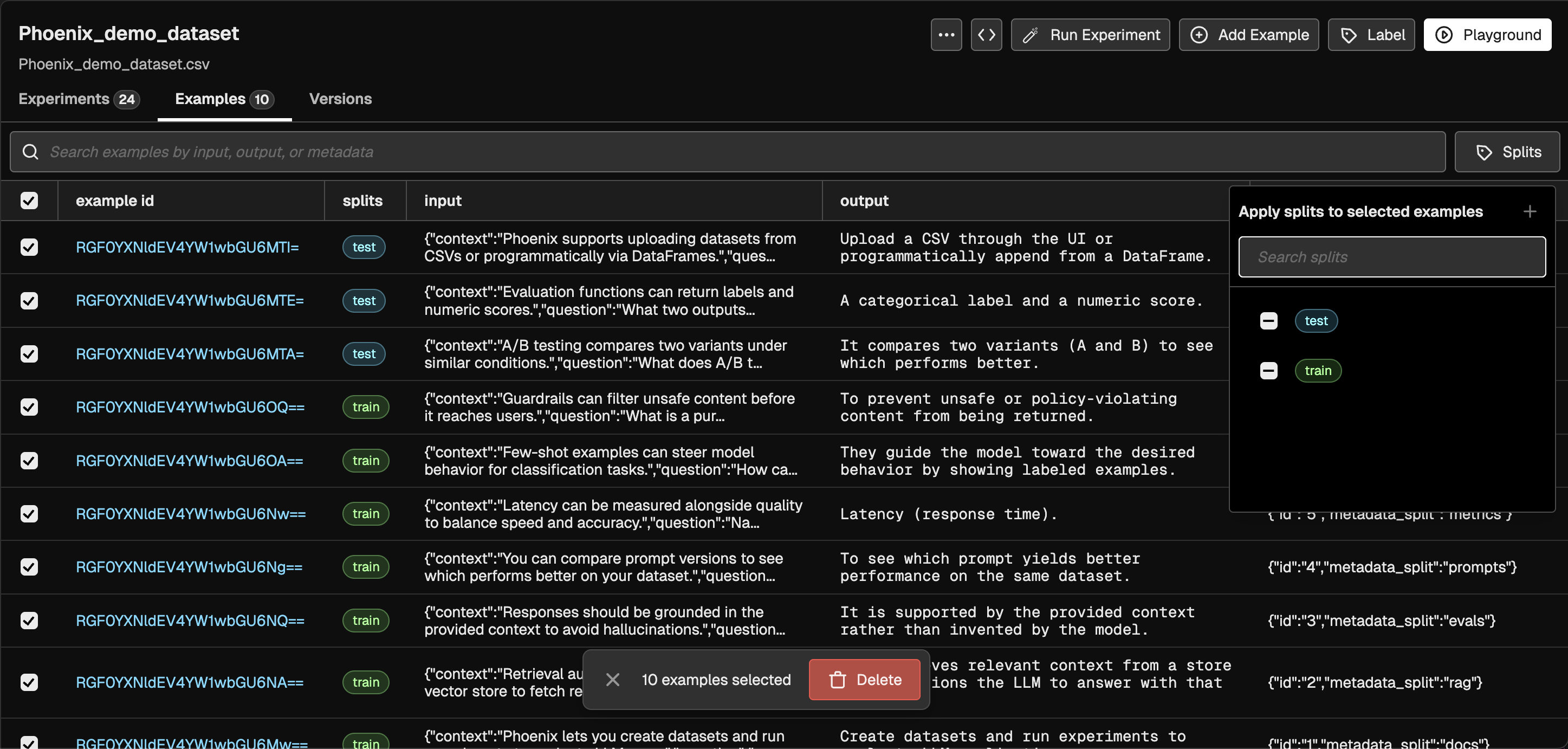
Splits can currently only be assigned from the UI on the dataset page. To assign dataset examples to splits, select a set of examples and using the split filter we can select splits and it will automatically assign those selected examples to the set of selected splits
#### Assigning Splits
Splits can currently only be assigned from the UI on the dataset page. To assign dataset examples to splits, select a set of examples and using the split filter we can select splits and it will automatically assign those selected examples to the set of selected splits

 ### Using splits
For the rest of this example we will be working with the following dataset, which has 3 examples assigned to test and 7 examples assigned to train.
### Using splits
For the rest of this example we will be working with the following dataset, which has 3 examples assigned to test and 7 examples assigned to train.
 Experiments can be ran over dataset splits from the playground UI. With dataset splits, the dataset selector UI now shows the dataset with the ability to select all examples or to select from a set of splits
 To run an experiment over the "train" split, we can select the dataset by the train split which shows the 7 selected examples and hit Run

 Splits are implicitly configured when a dataset is pulled from the Phoenix server using the `get_dataset` client method. Subsequent invocations of `run_experiment` only run on the examples belonging to the split(s).
```python theme={null}
# pip install "arize-phoenix-client>1.22.0"
from phoenix.client import Client
client = Client()
# only pulls examples from the selected splits
dataset = client.datasets.get_dataset(
dataset="my-dataset",
splits=["test", "hard_examples"], # names of previously created splits
)
def my_task(input):
return f"Hello {input['name']}"
experiment = client.experiments.run_experiment(
dataset=dataset, # runs only on the selected splits
task=my_task,
experiment_name="greeting-experiment"
)
```
Splits can be configured within a DatasetSelector, when fetching datasets. Dataset examples contained within the selected splits will be used in experiment runs, or evaluations.
```typescript theme={null}
// npm install @arizeai/phoenix-client@latest
import { runExperiment } from "@arizeai/phoenix-client/experiments"
import type { ExperimentTask } from "@arizeai/phoenix-client/types/experiments";
import type { DatasetSelector } from "@arizeai/phoenix-client/types/datasets";
const myTask: ExperimentTask = (example) => {
return `Hello, ${(example.input as any).name ?? "stranger"}!`
}
// Create a dataset selector that can be used to fetch a dataset
const datasetSelector: DatasetSelector = {
datasetName: "my-dataset",
splits: ["test", "hard_examples"] // names of previously created splits
}
runExperiment({
// runExperiment will perform a just-in-time fetch of the dataset "my-dataset"
// with its examples filtered by the provided splits
dataset: datasetSelector,
task: myTask,
experimentName: "greeting-experiment"
})
```
### Comparing Experiments on Splits
Splits as a property are mutable, meaning you can add or remove examples from splits at any time. However, for consistent experiment comparison, experiment runs are snapshotted at the time of execution. The association between experiment runs and the splits they were executed against is immutable, ensuring that comparisons remain accurate even if split assignments change later.
The comparisons between experiments will always consult the snapshot of the base experiment. This means that when comparing experiments, the system uses the exact set of examples that were included in the base experiment at the time it was executed, regardless of any subsequent changes to split assignments.
For example, if you run an experiment on the "train" split when it contains 7 examples (with specific example IDs), those same 7 example IDs are what will be retrieved and compared in any future experiment comparisons. Even if you later add more examples to the "train" split or remove some examples, the comparison will still only include the original 7 examples that were part of the base experiment's snapshot.
When comparing experiments run on splits we will now see this new overlap states where a experiment comparison either doesn't contain those example IDs:
Splits are implicitly configured when a dataset is pulled from the Phoenix server using the `get_dataset` client method. Subsequent invocations of `run_experiment` only run on the examples belonging to the split(s).
```python theme={null}
# pip install "arize-phoenix-client>1.22.0"
from phoenix.client import Client
client = Client()
# only pulls examples from the selected splits
dataset = client.datasets.get_dataset(
dataset="my-dataset",
splits=["test", "hard_examples"], # names of previously created splits
)
def my_task(input):
return f"Hello {input['name']}"
experiment = client.experiments.run_experiment(
dataset=dataset, # runs only on the selected splits
task=my_task,
experiment_name="greeting-experiment"
)
```
Splits can be configured within a DatasetSelector, when fetching datasets. Dataset examples contained within the selected splits will be used in experiment runs, or evaluations.
```typescript theme={null}
// npm install @arizeai/phoenix-client@latest
import { runExperiment } from "@arizeai/phoenix-client/experiments"
import type { ExperimentTask } from "@arizeai/phoenix-client/types/experiments";
import type { DatasetSelector } from "@arizeai/phoenix-client/types/datasets";
const myTask: ExperimentTask = (example) => {
return `Hello, ${(example.input as any).name ?? "stranger"}!`
}
// Create a dataset selector that can be used to fetch a dataset
const datasetSelector: DatasetSelector = {
datasetName: "my-dataset",
splits: ["test", "hard_examples"] // names of previously created splits
}
runExperiment({
// runExperiment will perform a just-in-time fetch of the dataset "my-dataset"
// with its examples filtered by the provided splits
dataset: datasetSelector,
task: myTask,
experimentName: "greeting-experiment"
})
```
### Comparing Experiments on Splits
Splits as a property are mutable, meaning you can add or remove examples from splits at any time. However, for consistent experiment comparison, experiment runs are snapshotted at the time of execution. The association between experiment runs and the splits they were executed against is immutable, ensuring that comparisons remain accurate even if split assignments change later.
The comparisons between experiments will always consult the snapshot of the base experiment. This means that when comparing experiments, the system uses the exact set of examples that were included in the base experiment at the time it was executed, regardless of any subsequent changes to split assignments.
For example, if you run an experiment on the "train" split when it contains 7 examples (with specific example IDs), those same 7 example IDs are what will be retrieved and compared in any future experiment comparisons. Even if you later add more examples to the "train" split or remove some examples, the comparison will still only include the original 7 examples that were part of the base experiment's snapshot.
When comparing experiments run on splits we will now see this new overlap states where a experiment comparison either doesn't contain those example IDs:
 Or the expected state when there is an overlap:
