> ## Documentation Index
> Fetch the complete documentation index at: https://arizeai-433a7140.mintlify.site/llms.txt
> Use this file to discover all available pages before exploring further.
# Run Experiments
> Run experiments from the Playground or programmatically with the SDK.
Phoenix supports two workflows for experiments. Use the Playground UI to iterate quickly, or the SDK to run experiments in code.
Run experiments programmatically with tasks and evaluators in code.
Configure prompts and evaluators in the Playground and compare results.
## Run Experiments with the SDK
### Setup
Make sure you have the Phoenix client and the instrumentors needed for the experiment setup. For this example we will use the OpenAI instrumentor to trace the LLM calls.
```sh theme={null}
pip install arize-phoenix-client arize-phoenix-otel openinference-instrumentation-openai openai datasets duckdb pandas
```
```sh theme={null}
npm install @arizeai/phoenix-client
```
The key steps of running an experiment are:
* Each record of the dataset is called an `Example`
* A task is a function that takes each `Example` and returns an output
* An `Evaluator` is a function that evaluates the output for each `Example`
We'll start by initializing the Phoenix client to connect to your deployed Phoenix instance.
```python theme={null}
from phoenix.client import Client
# Initialize client - automatically reads from environment variables:
# PHOENIX_BASE_URL and PHOENIX_API_KEY (if using Phoenix Cloud)
client = Client()
# Or explicitly configure for your Phoenix instance:
# client = Client(base_url="https://your-phoenix-instance.com", api_key="your-api-key")
```
### Load a Dataset
A dataset can be as simple as a list of strings inside a dataframe. More sophisticated datasets can be also extracted from traces based on actual production data. Here we just have a small list of questions that we want to ask an LLM about the NBA games:
**Create pandas dataframe**
```python theme={null}
import pandas as pd
df = pd.DataFrame(
{
"question": [
"Which team won the most games?",
"Which team won the most games in 2015?",
"Who led the league in 3 point shots?",
]
}
)
```
The dataframe can be sent to `Phoenix` via the `Client`. `input_keys` and `output_keys` are column names of the dataframe, representing the input/output to the task in question. Here we have just questions, so we left the outputs blank:
**Upload dataset to Phoenix**
```python theme={null}
dataset = client.datasets.create_dataset(
name="nba-questions",
dataframe=df,
input_keys=["question"],
output_keys=[],
)
```
Each row of the dataset is called an `Example`.
### Create a Task
A task is any function/process that returns a JSON serializable output. Task can also be an `async` function, but we used sync function here for simplicity. If the task is a function of one argument, then that argument will be bound to the `input` field of the dataset example.
```python theme={null}
def task(x):
return ...
```
For our example here, we'll ask an LLM to build SQL queries based on our question, which we'll run on a database and obtain a set of results:
**Set Up Database**
```python theme={null}
import duckdb
from datasets import load_dataset
data = load_dataset("suzyanil/nba-data")["train"]
conn = duckdb.connect(database=":memory:", read_only=False)
conn.register("nba", data.to_pandas())
```
**Set Up Prompt and LLM**
```python theme={null}
from textwrap import dedent
import openai
# Create OpenAI client (separate from Phoenix client)
openai_client = openai.Client()
columns = conn.query("DESCRIBE nba").to_df().to_dict(orient="records")
LLM_MODEL = "gpt-4o"
columns_str = ",".join(column["column_name"] + ": " + column["column_type"] for column in columns)
system_prompt = dedent(f"""
You are a SQL expert, and you are given a single table named nba with the following columns:
{columns_str}\n
Write a SQL query corresponding to the user's
request. Return just the query text, with no formatting (backticks, markdown, etc.).""")
def generate_query(question):
response = openai_client.chat.completions.create(
model=LLM_MODEL,
messages=[
{"role": "system", "content": system_prompt},
{"role": "user", "content": question},
],
)
return response.choices[0].message.content
def execute_query(query):
return conn.query(query).fetchdf().to_dict(orient="records")
def text2sql(question):
results = error = None
query = None
try:
query = generate_query(question)
results = execute_query(query)
except duckdb.Error as e:
error = str(e)
return {"query": query, "results": results, "error": error}
```
**Define **`task`** as a Function**
Recall that each row of the dataset is encapsulated as `Example` object. Recall that the input keys were defined when we uploaded the dataset:
```python theme={null}
def task(x):
return text2sql(x["question"])
```
**More complex **`task`** inputs**
More complex tasks can use additional information. These values can be accessed by defining a task function with specific parameter names which are bound to special values associated with the dataset example:
| Parameter name | Description | Example |
| :------------- | :------------------- | :------------------------- |
| `input` | example input | `def task(input): ...` |
| `expected` | example output | `def task(expected): ...` |
| `reference` | alias for `expected` | `def task(reference): ...` |
| `metadata` | example metadata | `def task(metadata): ...` |
| `example` | `Example` object | `def task(example): ...` |
A `task` can be defined as a sync or async function that takes any number of the above argument names in any order!
### Define Evaluators
An evaluator is any function that takes the task output and return an assessment. Here we'll simply check if the queries succeeded in obtaining any result from the database:
```python theme={null}
def no_error(output) -> bool:
return not bool(output.get("error"))
def has_results(output) -> bool:
return bool(output.get("results"))
```
### Run an Experiment
**Instrument OpenAI**
Instrumenting the LLM will also give us the spans and traces that will be linked to the experiment, and can be examined in the Phoenix UI:
```python theme={null}
from openinference.instrumentation.openai import OpenAIInstrumentor
from phoenix.otel import register
tracer_provider = register()
OpenAIInstrumentor().instrument(tracer_provider=tracer_provider)
```
**Run the Task and Evaluators**
Running an experiment is as easy as calling `run_experiment` with the components we defined above. The results of the experiment will be show up in Phoenix:
```python theme={null}
experiment = client.experiments.run_experiment(
dataset=dataset,
task=task,
evaluators=[no_error, has_results]
)
```
```typescript theme={null}
import { createDataset } from "@arizeai/phoenix-client/datasets";
import { asExperimentEvaluator, runExperiment } from "@arizeai/phoenix-client/experiments";
import type { EvaluatorParams } from "@arizeai/phoenix-client/types/experiments";
const { datasetId } = await createDataset({
name: "names-dataset",
description: "a simple dataset of names",
examples: [
{ input: { name: "John" }, output: { text: "Hello, John!" }, metadata: {} },
{ input: { name: "Jane" }, output: { text: "Hello, Jane!" }, metadata: {} },
],
});
const task = async (example) => `hello ${example.input.name}`;
const evaluators = [
asExperimentEvaluator({
name: "matches",
kind: "CODE",
evaluate: async ({ output, expected }: EvaluatorParams) => {
const matches = output === expected?.text;
return {
label: matches ? "matches" : "does not match",
score: matches ? 1 : 0,
explanation: matches ? "output matches expected" : "output does not match expected",
metadata: {},
};
},
}),
asExperimentEvaluator({
name: "contains-hello",
kind: "CODE",
evaluate: async ({ output }: EvaluatorParams) => {
const matches = typeof output === "string" && output.includes("hello");
return {
label: matches ? "contains hello" : "does not contain hello",
score: matches ? 1 : 0,
explanation: matches ? "output contains hello" : "output does not contain hello",
metadata: {},
};
},
}),
];
const experiment = await runExperiment({
dataset: { datasetId },
task,
evaluators,
});
```
### Add More Evaluations
#### If you want to attach more evaluations to the same experiment after the fact, you can do so with `evaluate_experiment`.
```python theme={null}
evaluators = [
# add evaluators here
]
experiment = client.experiments.evaluate_experiment(
experiment=experiment,
evaluators=evaluators
)
```
If you no longer have access to the original `experiment` object, you can retrieve it from Phoenix using the `get_experiment` client method.
```python theme={null}
experiment_id = "experiment-id" # set your experiment ID here
experiment = client.experiments.get_experiment(experiment_id=experiment_id)
evaluators = [
# add evaluators here
]
experiment = client.experiments.evaluate_experiment(
experiment=experiment,
evaluators=evaluators
)
```
#### Dry Run
Sometimes we may want to do a quick sanity check on the task function or the evaluators before unleashing them on the full dataset. `run_experiment()` and `evaluate_experiment()` both are equipped with a `dry_run=` parameter for this purpose: it executes the task and evaluators on a small subset without sending data to the Phoenix server. Setting `dry_run=True` selects one sample from the dataset, and setting it to a number, e.g. `dry_run=3`, selects multiple. The sampling is also deterministic, so you can keep re-running it for debugging purposes.
## Run Experiments in the UI
Phoenix lets you run experiments directly from the UI using a dataset and prompt(s) in the Playground. The results are tracked as experiments attached to the dataset so you can compare runs over time.
### Load a Dataset
1. Open **Datasets** and select the dataset you want to use.
2. Open the Playground and choose your dataset from the dataset selector.
### Configure a Prompt
1. Define your prompt template and model settings.
2. If your dataset inputs are nested, set the **Prompt variable path** in the dataset settings (gear icon).
### Run an Experiment
Click **Run** in the Playground. Phoenix runs your prompt across every dataset example and records results as an experiment. If your dataset has evaluators attached, Phoenix also scores each run and records the results as annotations.
## Review Failure Modes
After the run completes, open the experiment to understand where the prompt or model is underperforming.
1. Use the results table to sort and filter by evaluator scores (if you have evaluators attached).
2. Open examples with low scores (or incorrect categorical labels) to see the full input, output, and reference data.
3. If an issue is unclear, open the associated traces to inspect tool calls, model parameters, and intermediate steps.
If you do not have evaluators attached yet, start by scanning outputs and references for patterns, then add evaluators to encode those failure modes.
This workflow helps you identify recurring failure patterns before you change your prompt or model.
## Define Evaluators for the Issues You See
Once you identify a failure mode, encode it as an evaluator so Phoenix can track it across future experiments.
1. In the Playground experiment toolbar, open **Evaluators**.
2. Add an evaluator (LLM evaluator or built-in code evaluator).
3. Map its inputs from dataset fields, test it on a few examples, and save it.
4. Make sure the evaluator is selected, then re-run your experiment so it produces annotation columns in the results table.
Evaluator input mappings can reference `input`, `output`, `reference`, and `metadata` fields from your dataset examples.
Use **LLM evaluators** for judgment-heavy issues like relevance, tone, or correctness. Use **built-in code evaluators** for deterministic checks like regex matching, exact match, or distance metrics.
For more detail on evaluator configuration, see [Dataset Evaluators](/docs/phoenix/datasets-and-experiments/how-to-experiments/how-to-dataset-evaluators) and [Using Evaluators](/docs/phoenix/datasets-and-experiments/how-to-experiments/using-evaluators).
## Experiment Annotations and Optimization Direction
Evaluators configured in the UI produce annotations that are attached to experiment runs. These annotations power the experiment results table, comparison views, and summaries. In addition to the score itself, annotations carry metadata that helps Phoenix interpret the result.
One of the most important metadata fields is **optimization direction**, which tells Phoenix whether **higher is better**, **lower is better**, or if there is **no ordering**. Phoenix uses this to visually indicate which runs are better or worse when comparing experiments.
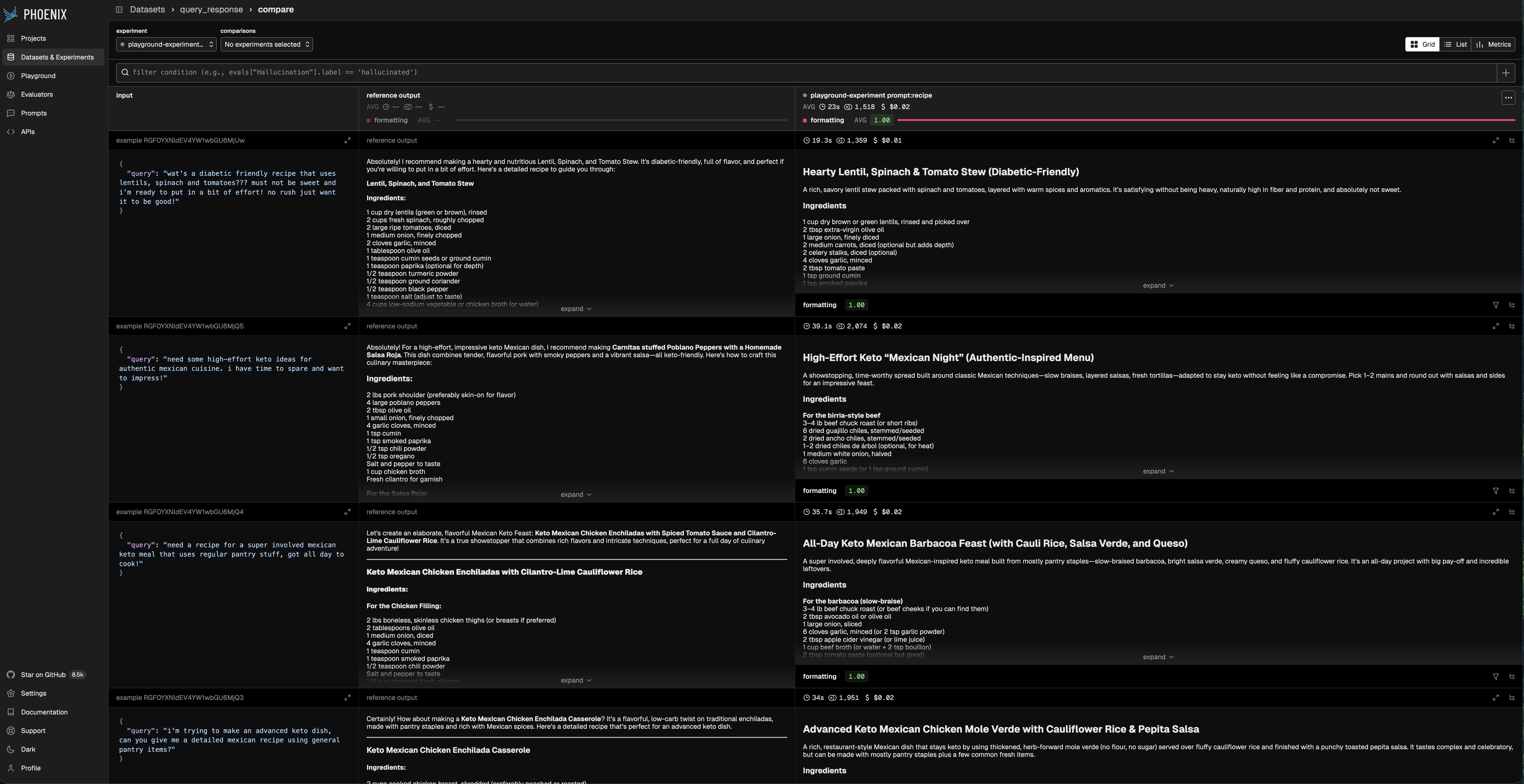
Optimization direction is set by the evaluator output configuration:
* **Maximize**: higher scores indicate better outcomes (for example, faithfulness or correctness).
* **Minimize**: lower scores indicate better outcomes (for example, distance or error rate).
* **None**: no ordering (for example, categorical labels or freeform notes).