> ## Documentation Index
> Fetch the complete documentation index at: https://arizeai-433a7140.mintlify.site/llms.txt
> Use this file to discover all available pages before exploring further.
# Few Shot Prompting
> Few-shot prompting is a powerful technique in prompt engineering that helps LLMs perform tasks more effectively by providing a few examples within the prompt.
colab.research.google.com
Unlike zero-shot prompting, where the model must infer the task with no prior context, or one-shot prompting, where a single example is provided, few-shot prompting leverages multiple examples to guide the model’s responses more accurately.
In this tutorial you will:
* Explore how different prompting strategies impact performance in a sentiment analysis task on a dataset of reviews.
* Run an evaluation to measure how the prompt affects the model’s performance
* Track your how your prompt and experiment changes overtime in Phoenix
By the end of this tutorial, you’ll have a clear understanding of how structured prompting can significantly enhance the results of any application.
You will need an OpenAI Key for this tutorial.
Let’s get started! 🚀
## Setup Dependencies and Keys
```sh theme={null}
!pip install -qqq "arize-phoenix>=8.0.0" datasets openinference-instrumentation-openai
```
Point your code at the Phoenix instance you started. The endpoint below is the default for a local `phoenix serve`; for a deployment running elsewhere, use its hostname instead.
```python theme={null}
import os
os.environ["PHOENIX_COLLECTOR_ENDPOINT"] = "http://localhost:6006"
# Only if the deployment has authentication enabled
# os.environ["PHOENIX_API_KEY"] = "your-api-key"
```
Then provide your OpenAI key, which this tutorial uses for the LLM calls:
```python theme={null}
import os
from getpass import getpass
if not os.environ.get("OPENAI_API_KEY"):
os.environ["OPENAI_API_KEY"] = getpass("Enter your OpenAI API key: ")
```
## Load Dataset Into Phoenix
This dataset contains reviews along with their corresponding sentiment labels. Throughout this notebook, we will use the same dataset to evaluate the impact of different prompting techniques, refining our approach with each iteration.
Here, we also import the Phoenix Client, which enables us to create and modify prompts directly within the notebook while seamlessly syncing changes to the Phoenix UI.
```py theme={null}
from datasets import load_dataset
ds = load_dataset("syeddula/fridgeReviews")["train"]
ds = ds.to_pandas()
ds.head()
```
## Set up Phoenix Client
```python theme={null}
import uuid
import phoenix as px
from phoenix.client import Client
unique_id = uuid.uuid4()
# Upload the dataset to Phoenix
px_client = Client()
dataset = px_client.datasets.create_dataset(
dataframe=ds,
input_keys=["Review"],
output_keys=["Sentiment"],
name=f"review-classification-{unique_id}",
)
```
## Zero-Shot Prompting
Zero-shot prompting is a technique where a language model is asked to perform a task without being given any prior examples. Instead, the model relies solely on its pre-trained knowledge to generate a response. This approach is useful when you need quick predictions without providing specific guidance.
In this section, we will apply zero-shot prompting to our sentiment analysis dataset, asking the model to classify reviews as positive, negative, or neutral without any labeled examples. We’ll then evaluate its performance to see how well it can infer the task based on the prompt alone.
```py expandable theme={null}
from openai import OpenAI
from openai.types.chat.completion_create_params import CompletionCreateParamsBase
from phoenix.client.types import PromptVersion
params = CompletionCreateParamsBase(
model="gpt-3.5-turbo",
temperature=0,
messages=[
{
"role": "system",
"content": "You are an evaluator who assesses the sentiment of a review. Output if the review positive, negative, or neutral. Only respond with one of these classifications.",
},
{"role": "user", "content": "{{Review}}"},
],
)
prompt_identifier = "fridge-sentiment-reviews"
prompt = px_client.prompts.create(
name=prompt_identifier,
prompt_description="A prompt for classifying reviews based on sentiment.",
version=PromptVersion.from_openai(params),
)
```
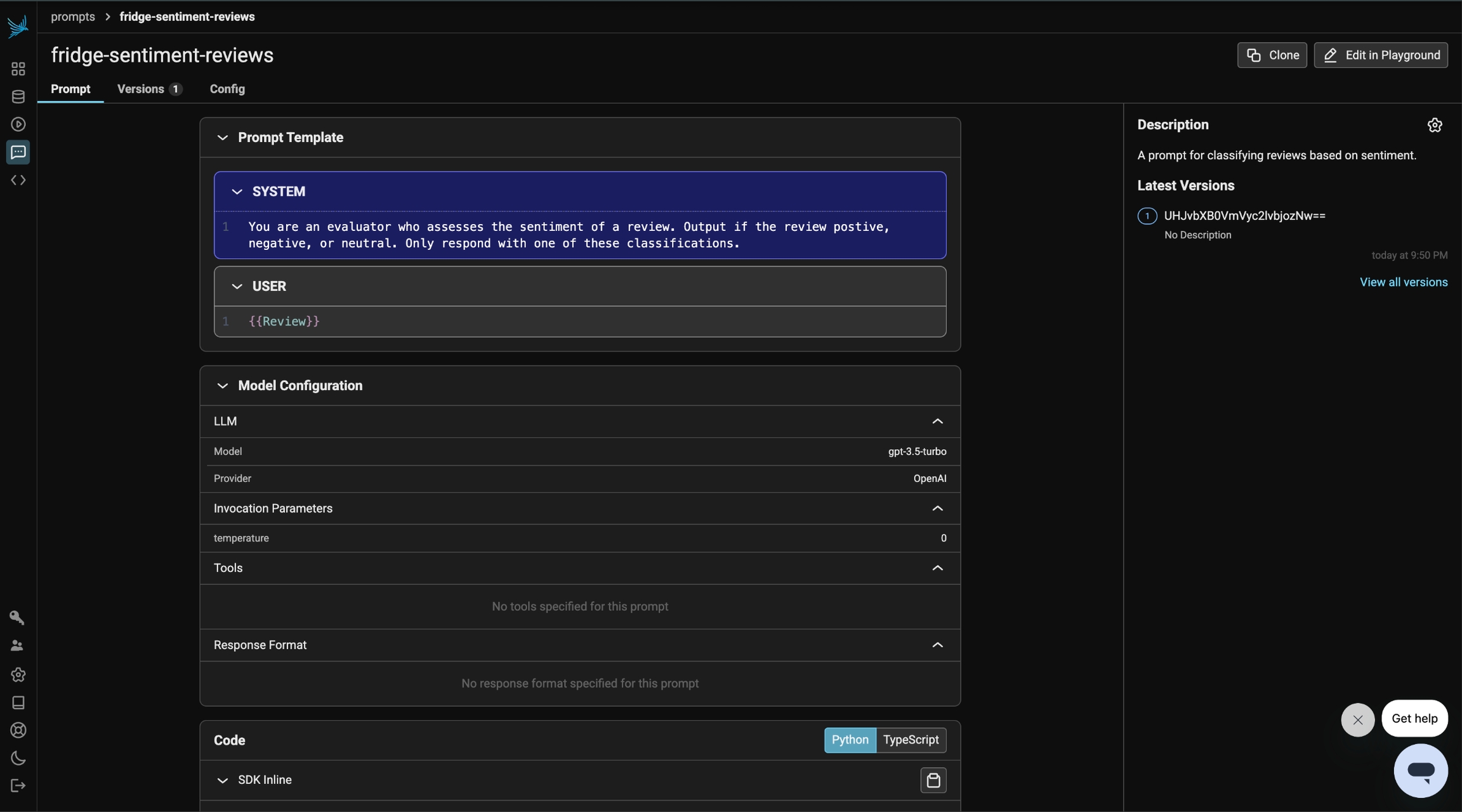
At this stage, this initial prompt is now available in Phoenix under the Prompt tab. Any modifications made to the prompt moving forward will be tracked under **Versions**, allowing you to monitor and compare changes over time.
Prompts in Phoenix store more than just text—they also include key details such as the prompt template, model configurations, and response format, ensuring a structured and consistent approach to generating outputs.
Next we will define a task and evaluator for the experiment.
Because our dataset has ground truth labels, we can use a simple function to check if the output of the task matches the expected output.
```python theme={null}
def zero_shot_prompt(input):
client = OpenAI()
resp = client.chat.completions.create(**prompt.format(variables={"Review": input["Review"]}))
return resp.choices[0].message.content.strip()
def evaluate_response(output, expected):
return output.lower() == expected["Sentiment"].lower()
```
If you’d like to instrument your code, you can run the cell below. While this step isn’t required for running prompts and evaluations, it enables trace visualization for deeper insights into the model’s behavior.
```py theme={null}
from openinference.instrumentation.openai import OpenAIInstrumentor
from phoenix.otel import register
tracer_provider = register(project_name="few-shot-examples")
OpenAIInstrumentor().instrument(tracer_provider=tracer_provider)
```
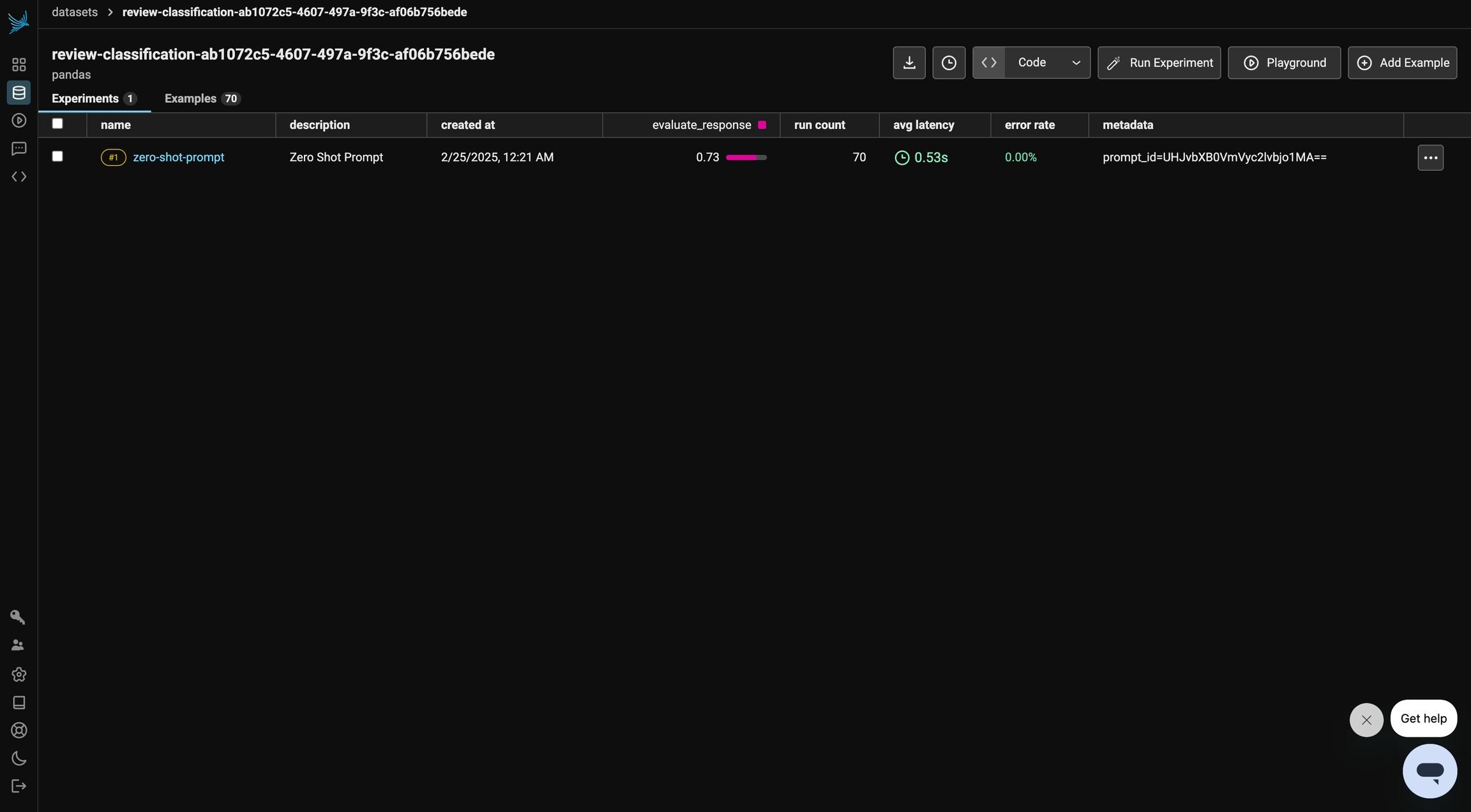
Finally, we run our experiment. We can view the results of the experiment in Phoenix.
```python theme={null}
import nest_asyncio
nest_asyncio.apply()
initial_experiment = px_client.experiments.run_experiment(
dataset=dataset,
task=zero_shot_prompt,
evaluators=[evaluate_response],
experiment_description="Zero-Shot Prompt",
experiment_name="zero-shot-prompt",
experiment_metadata={"prompt": "prompt_id=" + prompt.id},
)
```
In the following sections, we refine the prompt to enhance the model's performance and improve the evaluation results on our dataset.
## One-Shot Prompting
One-shot prompting provides the model with a single example to guide its response. By including a labeled example in the prompt, we give the model a clearer understanding of the task, helping it generate more accurate predictions compared to zero-shot prompting.
In this section, we will apply one-shot prompting to our sentiment analysis dataset by providing one labeled review as a reference. We’ll then evaluate how this small amount of guidance impacts the model’s ability to classify sentiments correctly.
```py theme={null}
ds = load_dataset("syeddula/fridgeReviews")["test"]
one_shot_example = ds.to_pandas().sample(1)
```
```python theme={null}
one_shot_template = """
"You are an evaluator who assesses the sentiment of a review. Output if the review positive, negative, or neutral. Only respond with one of these classifications."
Here is one example of a review and the sentiment:
{examples}
"""
params = CompletionCreateParamsBase(
model="gpt-3.5-turbo",
temperature=0,
messages=[
{"role": "system", "content": one_shot_template.format(examples=one_shot_example)},
{"role": "user", "content": "{{Review}}"},
],
)
one_shot_prompt = PhoenixClient().prompts.create(
name=prompt_identifier,
prompt_description="One-shot prompt for classifying reviews based on sentiment.",
version=PromptVersion.from_openai(params),
)
```
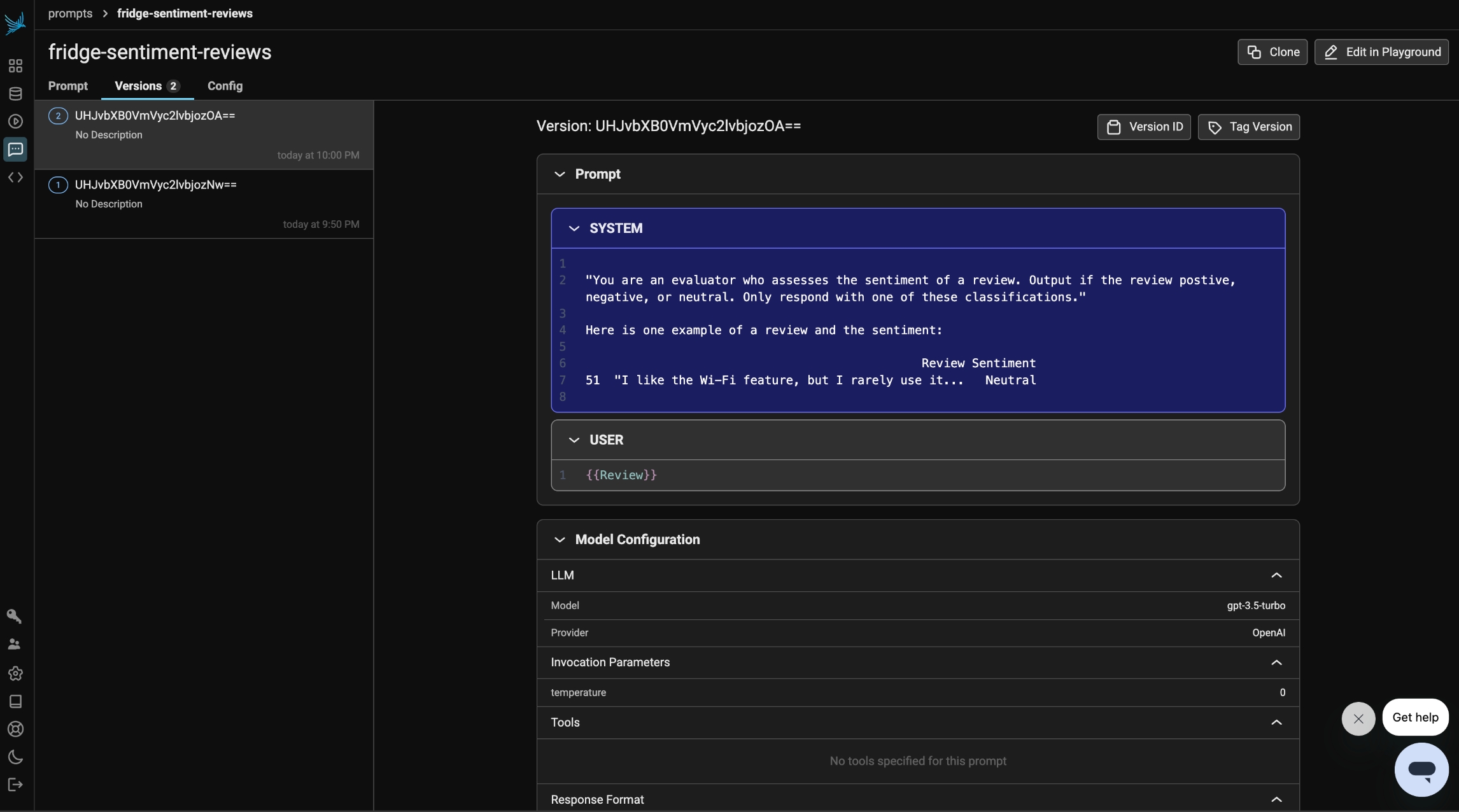
Under the prompts tab in Phoenix, we can see that our prompt has an updated version. The prompt includes one random example from the test dataset to help the model make its classification.
Similar to the previous step, we will define the task and run the evaluator. This time, we will be using our updated prompt for One-Shot Prompting and see how the evaluation changes.
```python theme={null}
def one_shot_prompt_template(input):
client = OpenAI()
resp = client.chat.completions.create(
**one_shot_prompt.format(variables={"Review": input["Review"]})
)
return resp.choices[0].message.content.strip()
```
```python theme={null}
one_shot_experiment = px_client.experiments.run_experiment(
dataset=dataset,
task=one_shot_prompt_template,
evaluators=[evaluate_response],
experiment_description="One-Shot Prompting",
experiment_name="one-shot-prompt",
experiment_metadata={"prompt": "prompt_id=" + one_shot_prompt.id},
)
```
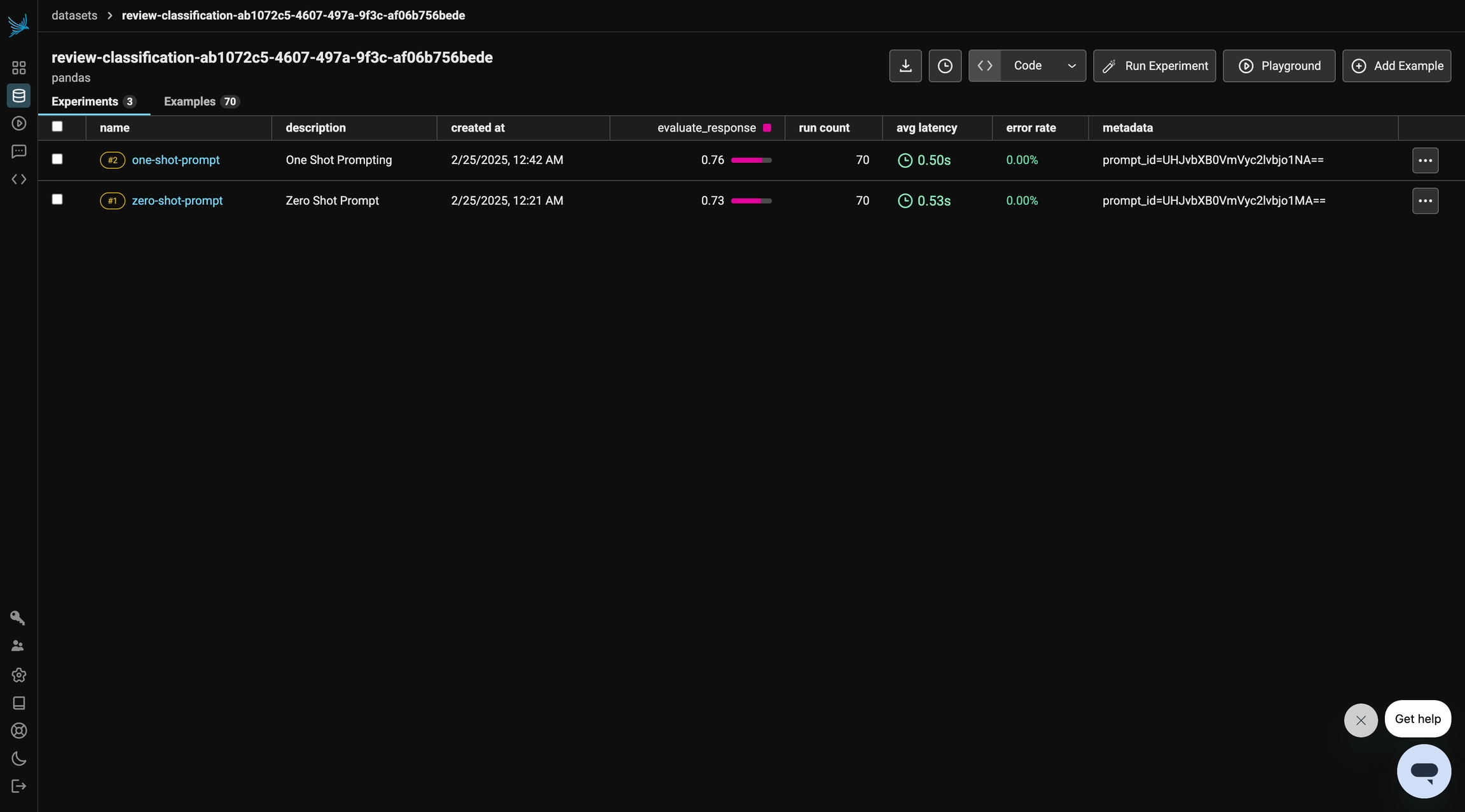
In this run, we observe a slight improvement in the evaluation results. Let’s see if we can further enhance performance in the next section.
**Note**: You may sometimes see a decline in performance, which is not necessarily "wrong." Results can vary due to factors such as the choice of LLM, the randomness of selected test examples, and other inherent model behaviors.
## Few-Shot Prompting
Finally, we will explore few-shot Prompting which enhances a model’s performance by providing multiple labeled examples within the prompt. By exposing the model to several instances of the task, it gains a better understanding of the expected output, leading to more accurate and consistent responses.
In this section, we will apply few-shot prompting to our sentiment analysis dataset by including multiple labeled reviews as references. This approach helps the model recognize patterns and improves its ability to classify sentiments correctly. We’ll then evaluate its performance to see how additional examples impact accuracy compared to zero-shot and one-shot prompting.
```py theme={null}
ds = load_dataset("syeddula/fridgeReviews")["test"]
few_shot_examples = ds.to_pandas().sample(10)
```
```python theme={null}
few_shot_template = """
"You are an evaluator who assesses the sentiment of a review. Output if the review positive, negative, or neutral. Only respond with one of these classifications."
Here are examples of a review and the sentiment:
{examples}
"""
params = CompletionCreateParamsBase(
model="gpt-3.5-turbo",
temperature=0,
messages=[
{"role": "system", "content": few_shot_template.format(examples=few_shot_examples)},
{"role": "user", "content": "{{Review}}"},
],
)
few_shot_prompt = PhoenixClient().prompts.create(
name=prompt_identifier,
prompt_description="Few-shot prompt for classifying reviews based on sentiment.",
version=PromptVersion.from_openai(params),
)
```
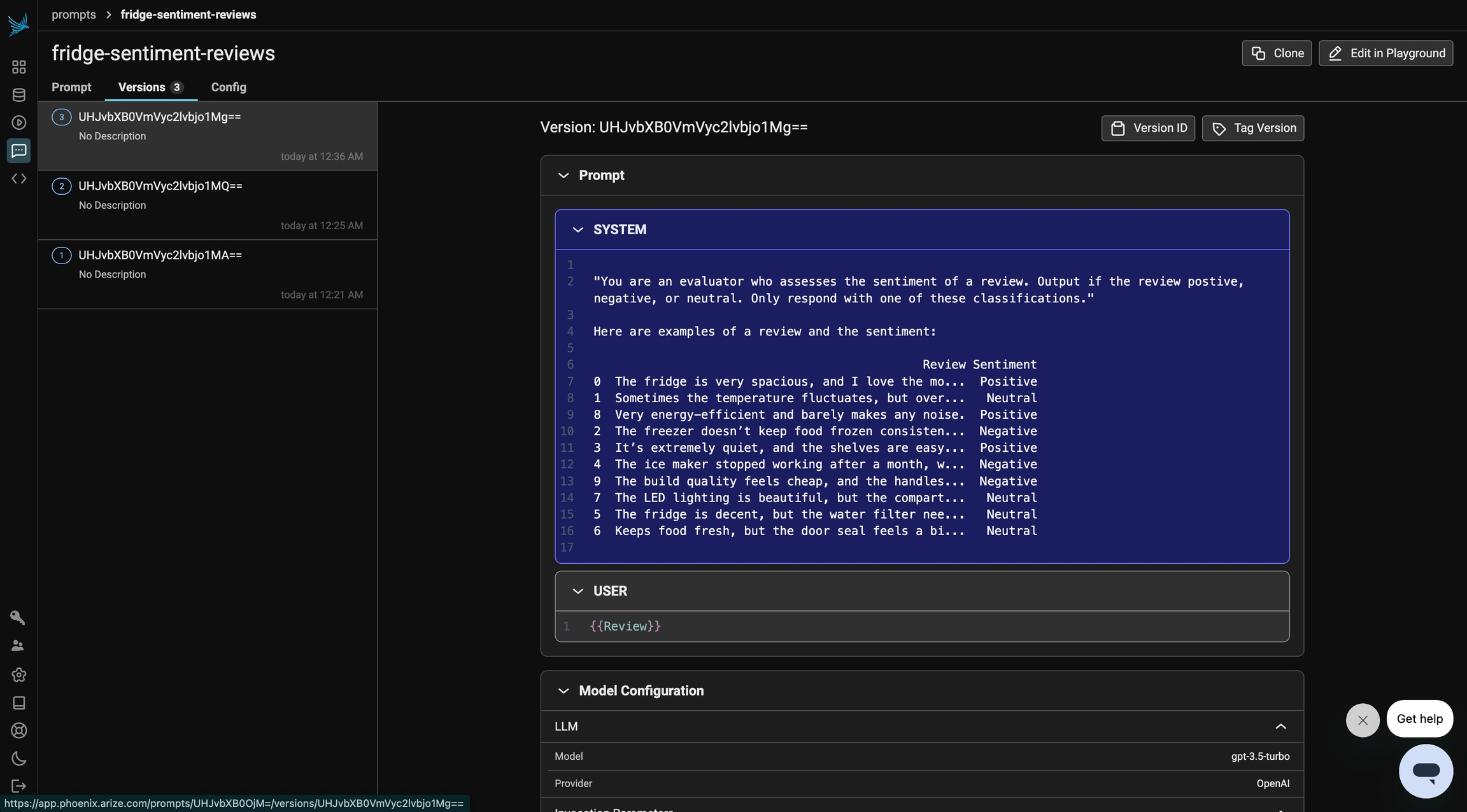
Our updated prompt also lives in Phoenix. We can clearly see how the linear version history of our prompt was built.
Just like previous steps, we run our task and evaluation.
```python theme={null}
def few_shot_prompt_template(input):
client = OpenAI()
resp = client.chat.completions.create(
**few_shot_prompt.format(variables={"Review": input["Review"]})
)
return resp.choices[0].message.content.strip()
```
```python theme={null}
few_shot_experiment = px_client.experiments.run_experiment(
dataset=dataset,
task=few_shot_prompt_template,
evaluators=[evaluate_response],
experiment_description="Few Shot Prompting",
experiment_name="few-shot-prompt",
experiment_metadata={"prompt": "prompt_id=" + few_shot_prompt.id},
)
```
## Final Results
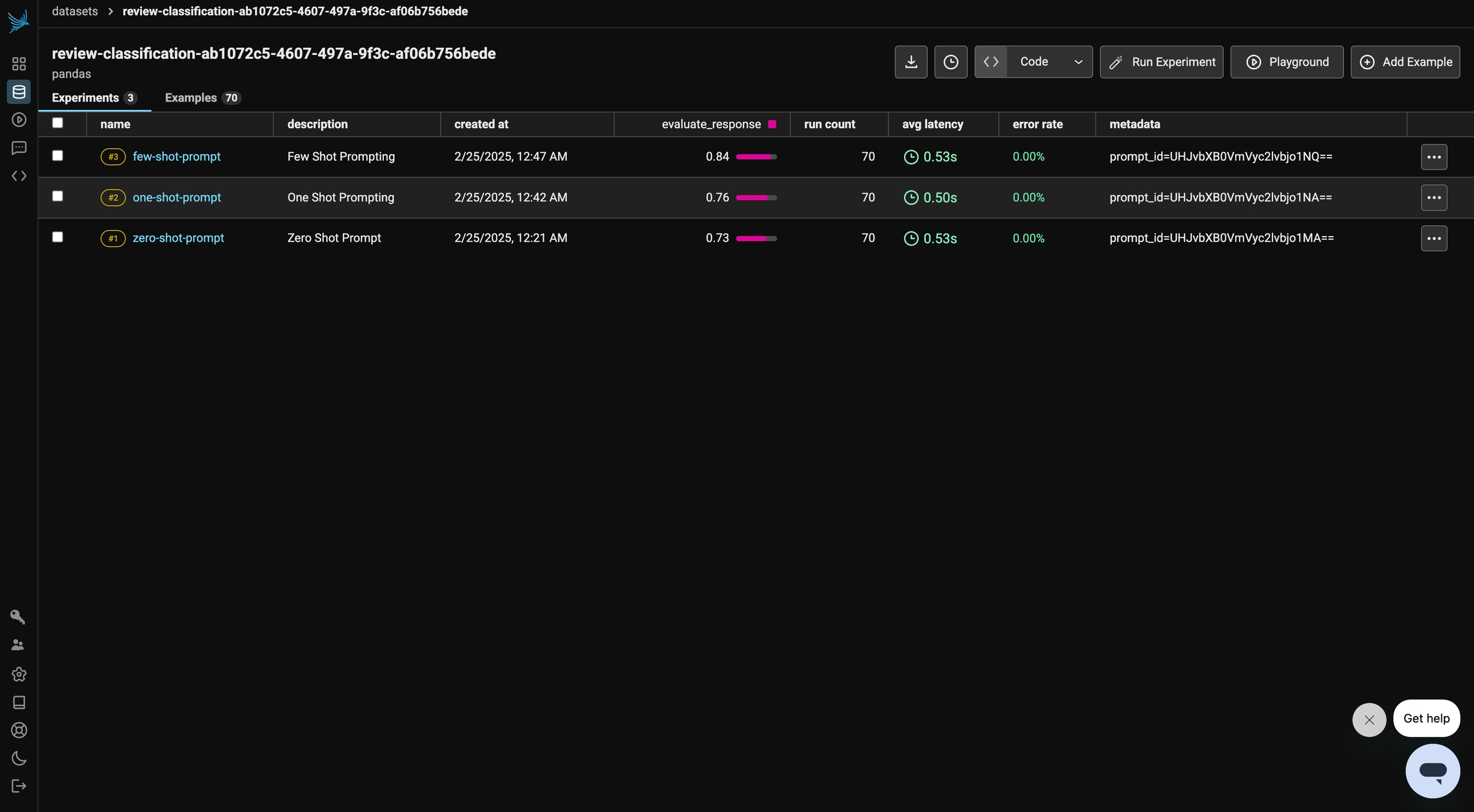
In this final run, we observe the most significant improvement in evaluation results. By incorporating multiple examples into our prompt, we provide clearer guidance to the model, leading to better sentiment classification.
Note: Performance may still vary, and in some cases, results might decline. Like before, this is not necessarily "wrong," as factors like the choice of LLM, the randomness of selected test examples, and inherent model behaviors can all influence outcomes.
From here, you can check out more [examples on Phoenix](/docs/phoenix/cookbook), and if you haven't already, [please give us a star on GitHub!](https://github.com/Arize-ai/phoenix) ⭐️
 Next we will define a task and evaluator for the experiment.
Because our dataset has ground truth labels, we can use a simple function to check if the output of the task matches the expected output.
```python theme={null}
def zero_shot_prompt(input):
client = OpenAI()
resp = client.chat.completions.create(**prompt.format(variables={"Review": input["Review"]}))
return resp.choices[0].message.content.strip()
def evaluate_response(output, expected):
return output.lower() == expected["Sentiment"].lower()
```
If you’d like to instrument your code, you can run the cell below. While this step isn’t required for running prompts and evaluations, it enables trace visualization for deeper insights into the model’s behavior.
```py theme={null}
from openinference.instrumentation.openai import OpenAIInstrumentor
from phoenix.otel import register
tracer_provider = register(project_name="few-shot-examples")
OpenAIInstrumentor().instrument(tracer_provider=tracer_provider)
```
Finally, we run our experiment. We can view the results of the experiment in Phoenix.
```python theme={null}
import nest_asyncio
nest_asyncio.apply()
initial_experiment = px_client.experiments.run_experiment(
dataset=dataset,
task=zero_shot_prompt,
evaluators=[evaluate_response],
experiment_description="Zero-Shot Prompt",
experiment_name="zero-shot-prompt",
experiment_metadata={"prompt": "prompt_id=" + prompt.id},
)
```
In the following sections, we refine the prompt to enhance the model's performance and improve the evaluation results on our dataset.
Next we will define a task and evaluator for the experiment.
Because our dataset has ground truth labels, we can use a simple function to check if the output of the task matches the expected output.
```python theme={null}
def zero_shot_prompt(input):
client = OpenAI()
resp = client.chat.completions.create(**prompt.format(variables={"Review": input["Review"]}))
return resp.choices[0].message.content.strip()
def evaluate_response(output, expected):
return output.lower() == expected["Sentiment"].lower()
```
If you’d like to instrument your code, you can run the cell below. While this step isn’t required for running prompts and evaluations, it enables trace visualization for deeper insights into the model’s behavior.
```py theme={null}
from openinference.instrumentation.openai import OpenAIInstrumentor
from phoenix.otel import register
tracer_provider = register(project_name="few-shot-examples")
OpenAIInstrumentor().instrument(tracer_provider=tracer_provider)
```
Finally, we run our experiment. We can view the results of the experiment in Phoenix.
```python theme={null}
import nest_asyncio
nest_asyncio.apply()
initial_experiment = px_client.experiments.run_experiment(
dataset=dataset,
task=zero_shot_prompt,
evaluators=[evaluate_response],
experiment_description="Zero-Shot Prompt",
experiment_name="zero-shot-prompt",
experiment_metadata={"prompt": "prompt_id=" + prompt.id},
)
```
In the following sections, we refine the prompt to enhance the model's performance and improve the evaluation results on our dataset.
 ## One-Shot Prompting
One-shot prompting provides the model with a single example to guide its response. By including a labeled example in the prompt, we give the model a clearer understanding of the task, helping it generate more accurate predictions compared to zero-shot prompting.
In this section, we will apply one-shot prompting to our sentiment analysis dataset by providing one labeled review as a reference. We’ll then evaluate how this small amount of guidance impacts the model’s ability to classify sentiments correctly.
```py theme={null}
ds = load_dataset("syeddula/fridgeReviews")["test"]
one_shot_example = ds.to_pandas().sample(1)
```
```python theme={null}
one_shot_template = """
"You are an evaluator who assesses the sentiment of a review. Output if the review positive, negative, or neutral. Only respond with one of these classifications."
Here is one example of a review and the sentiment:
{examples}
"""
params = CompletionCreateParamsBase(
model="gpt-3.5-turbo",
temperature=0,
messages=[
{"role": "system", "content": one_shot_template.format(examples=one_shot_example)},
{"role": "user", "content": "{{Review}}"},
],
)
one_shot_prompt = PhoenixClient().prompts.create(
name=prompt_identifier,
prompt_description="One-shot prompt for classifying reviews based on sentiment.",
version=PromptVersion.from_openai(params),
)
```
Under the prompts tab in Phoenix, we can see that our prompt has an updated version. The prompt includes one random example from the test dataset to help the model make its classification.
## One-Shot Prompting
One-shot prompting provides the model with a single example to guide its response. By including a labeled example in the prompt, we give the model a clearer understanding of the task, helping it generate more accurate predictions compared to zero-shot prompting.
In this section, we will apply one-shot prompting to our sentiment analysis dataset by providing one labeled review as a reference. We’ll then evaluate how this small amount of guidance impacts the model’s ability to classify sentiments correctly.
```py theme={null}
ds = load_dataset("syeddula/fridgeReviews")["test"]
one_shot_example = ds.to_pandas().sample(1)
```
```python theme={null}
one_shot_template = """
"You are an evaluator who assesses the sentiment of a review. Output if the review positive, negative, or neutral. Only respond with one of these classifications."
Here is one example of a review and the sentiment:
{examples}
"""
params = CompletionCreateParamsBase(
model="gpt-3.5-turbo",
temperature=0,
messages=[
{"role": "system", "content": one_shot_template.format(examples=one_shot_example)},
{"role": "user", "content": "{{Review}}"},
],
)
one_shot_prompt = PhoenixClient().prompts.create(
name=prompt_identifier,
prompt_description="One-shot prompt for classifying reviews based on sentiment.",
version=PromptVersion.from_openai(params),
)
```
Under the prompts tab in Phoenix, we can see that our prompt has an updated version. The prompt includes one random example from the test dataset to help the model make its classification.
 Similar to the previous step, we will define the task and run the evaluator. This time, we will be using our updated prompt for One-Shot Prompting and see how the evaluation changes.
```python theme={null}
def one_shot_prompt_template(input):
client = OpenAI()
resp = client.chat.completions.create(
**one_shot_prompt.format(variables={"Review": input["Review"]})
)
return resp.choices[0].message.content.strip()
```
```python theme={null}
one_shot_experiment = px_client.experiments.run_experiment(
dataset=dataset,
task=one_shot_prompt_template,
evaluators=[evaluate_response],
experiment_description="One-Shot Prompting",
experiment_name="one-shot-prompt",
experiment_metadata={"prompt": "prompt_id=" + one_shot_prompt.id},
)
```
In this run, we observe a slight improvement in the evaluation results. Let’s see if we can further enhance performance in the next section.
**Note**: You may sometimes see a decline in performance, which is not necessarily "wrong." Results can vary due to factors such as the choice of LLM, the randomness of selected test examples, and other inherent model behaviors.
Similar to the previous step, we will define the task and run the evaluator. This time, we will be using our updated prompt for One-Shot Prompting and see how the evaluation changes.
```python theme={null}
def one_shot_prompt_template(input):
client = OpenAI()
resp = client.chat.completions.create(
**one_shot_prompt.format(variables={"Review": input["Review"]})
)
return resp.choices[0].message.content.strip()
```
```python theme={null}
one_shot_experiment = px_client.experiments.run_experiment(
dataset=dataset,
task=one_shot_prompt_template,
evaluators=[evaluate_response],
experiment_description="One-Shot Prompting",
experiment_name="one-shot-prompt",
experiment_metadata={"prompt": "prompt_id=" + one_shot_prompt.id},
)
```
In this run, we observe a slight improvement in the evaluation results. Let’s see if we can further enhance performance in the next section.
**Note**: You may sometimes see a decline in performance, which is not necessarily "wrong." Results can vary due to factors such as the choice of LLM, the randomness of selected test examples, and other inherent model behaviors.
 ## Few-Shot Prompting
Finally, we will explore few-shot Prompting which enhances a model’s performance by providing multiple labeled examples within the prompt. By exposing the model to several instances of the task, it gains a better understanding of the expected output, leading to more accurate and consistent responses.
In this section, we will apply few-shot prompting to our sentiment analysis dataset by including multiple labeled reviews as references. This approach helps the model recognize patterns and improves its ability to classify sentiments correctly. We’ll then evaluate its performance to see how additional examples impact accuracy compared to zero-shot and one-shot prompting.
```py theme={null}
ds = load_dataset("syeddula/fridgeReviews")["test"]
few_shot_examples = ds.to_pandas().sample(10)
```
```python theme={null}
few_shot_template = """
"You are an evaluator who assesses the sentiment of a review. Output if the review positive, negative, or neutral. Only respond with one of these classifications."
Here are examples of a review and the sentiment:
{examples}
"""
params = CompletionCreateParamsBase(
model="gpt-3.5-turbo",
temperature=0,
messages=[
{"role": "system", "content": few_shot_template.format(examples=few_shot_examples)},
{"role": "user", "content": "{{Review}}"},
],
)
few_shot_prompt = PhoenixClient().prompts.create(
name=prompt_identifier,
prompt_description="Few-shot prompt for classifying reviews based on sentiment.",
version=PromptVersion.from_openai(params),
)
```
Our updated prompt also lives in Phoenix. We can clearly see how the linear version history of our prompt was built.
## Few-Shot Prompting
Finally, we will explore few-shot Prompting which enhances a model’s performance by providing multiple labeled examples within the prompt. By exposing the model to several instances of the task, it gains a better understanding of the expected output, leading to more accurate and consistent responses.
In this section, we will apply few-shot prompting to our sentiment analysis dataset by including multiple labeled reviews as references. This approach helps the model recognize patterns and improves its ability to classify sentiments correctly. We’ll then evaluate its performance to see how additional examples impact accuracy compared to zero-shot and one-shot prompting.
```py theme={null}
ds = load_dataset("syeddula/fridgeReviews")["test"]
few_shot_examples = ds.to_pandas().sample(10)
```
```python theme={null}
few_shot_template = """
"You are an evaluator who assesses the sentiment of a review. Output if the review positive, negative, or neutral. Only respond with one of these classifications."
Here are examples of a review and the sentiment:
{examples}
"""
params = CompletionCreateParamsBase(
model="gpt-3.5-turbo",
temperature=0,
messages=[
{"role": "system", "content": few_shot_template.format(examples=few_shot_examples)},
{"role": "user", "content": "{{Review}}"},
],
)
few_shot_prompt = PhoenixClient().prompts.create(
name=prompt_identifier,
prompt_description="Few-shot prompt for classifying reviews based on sentiment.",
version=PromptVersion.from_openai(params),
)
```
Our updated prompt also lives in Phoenix. We can clearly see how the linear version history of our prompt was built.
 Just like previous steps, we run our task and evaluation.
```python theme={null}
def few_shot_prompt_template(input):
client = OpenAI()
resp = client.chat.completions.create(
**few_shot_prompt.format(variables={"Review": input["Review"]})
)
return resp.choices[0].message.content.strip()
```
```python theme={null}
few_shot_experiment = px_client.experiments.run_experiment(
dataset=dataset,
task=few_shot_prompt_template,
evaluators=[evaluate_response],
experiment_description="Few Shot Prompting",
experiment_name="few-shot-prompt",
experiment_metadata={"prompt": "prompt_id=" + few_shot_prompt.id},
)
```
## Final Results
In this final run, we observe the most significant improvement in evaluation results. By incorporating multiple examples into our prompt, we provide clearer guidance to the model, leading to better sentiment classification.
Note: Performance may still vary, and in some cases, results might decline. Like before, this is not necessarily "wrong," as factors like the choice of LLM, the randomness of selected test examples, and inherent model behaviors can all influence outcomes.
Just like previous steps, we run our task and evaluation.
```python theme={null}
def few_shot_prompt_template(input):
client = OpenAI()
resp = client.chat.completions.create(
**few_shot_prompt.format(variables={"Review": input["Review"]})
)
return resp.choices[0].message.content.strip()
```
```python theme={null}
few_shot_experiment = px_client.experiments.run_experiment(
dataset=dataset,
task=few_shot_prompt_template,
evaluators=[evaluate_response],
experiment_description="Few Shot Prompting",
experiment_name="few-shot-prompt",
experiment_metadata={"prompt": "prompt_id=" + few_shot_prompt.id},
)
```
## Final Results
In this final run, we observe the most significant improvement in evaluation results. By incorporating multiple examples into our prompt, we provide clearer guidance to the model, leading to better sentiment classification.
Note: Performance may still vary, and in some cases, results might decline. Like before, this is not necessarily "wrong," as factors like the choice of LLM, the randomness of selected test examples, and inherent model behaviors can all influence outcomes.
 From here, you can check out more [examples on Phoenix](/docs/phoenix/cookbook), and if you haven't already, [please give us a star on GitHub!](https://github.com/Arize-ai/phoenix) ⭐️